Scenario Building
Interactive Exploration with PyPSA-Explorer
~20 minutes
As we introduced in the last workshop, PyPSA-Explorer is an interactive dashboard for visualizing and analyzing energy system networks. It provides:
Energy balance analysis with both time series and aggregated views
Capacity planning visualizations by technology and region
Economic analysis showing CAPEX/OPEX breakdowns
Interactive geographical network maps
Support for visualising multiple networks
Reminder: Using the Dashboard
Once the dashboard opens, you can explore these key features:
1. Energy Balance Tab
View production, consumption, and storage patterns over time
Switch between time series and aggregated views
Filter by energy carrier (electricity, hydrogen, etc.)
Filter by country or region
2. Capacity Tab
Analyze installed capacities across scenarios
Compare capacity buildout between 2030 and 2040
View breakdowns by technology type and region
3. Economics Tab
Examine costs and revenues
Review CAPEX and OPEX breakdowns by technology
Compare regional cost distributions
Assess investment requirements
4. Network Map
Visualize the geographical network layout
View an interactive map with network components
Zoom and pan to explore specific regions
Tip: Use the scenario selector buttons in the top-right corner to switch between NT 2030 and NT 2040 scenarios.
Note
PyPSA-Explorer can be launched in different ways depending on your environment:
Local Jupyter: Use the terminal command (recommended) or inline display
Google Colab: The dashboard launches inline, embedded directly in the notebook
Follow the instructions below for your specific environment.
This notebook is running locally !
For Local Users
If you’re running locally, we recommend launching PyPSA-Explorer from the terminal for optimal performance:
pypsa-explorer data/results-0.7.1/NT-cy2009-20260520/networks/base_s_all___2030.nc:NT_2030 data/results-0.7.1/NT-cy2009-20260520/networks/base_s_all___2040.nc:NT_2040
This command opens the dashboard in your default browser at http://localhost:8050.
Alternative: The cell below can launch the dashboard inline within the notebook, though the terminal method provides better performance and responsiveness.
For Google Colab Users
Running PyPSA-Explorer on Google Colab requires a small workaround to display the dashboard properly inside the notebook.
We already imported a useful helper function we introduced in the last workshop to handle this: run_pypsa_explorer_in_colab()
Tip for Colab users: To view the dashboard in fullscreen mode, click the three dots (⋮) in the top-right corner of the output cell and select “View output fullscreen”.
Task 1: Navigate PyPSA-Explorer
Let’s look at the latest Open-TYNDP NT scenario results (v0.7.1) and explore them interactively using the PyPSA-Explorer. Let’s try to find some specific information about the solved networks.
(a) Can you verify the total amount of wind generated on Danish Offshore Hubs in 2040 at 43.55 TWh?
(b) Can you verify that Germany is the largest net annual importer of H2 in 2040?
Hint: Look for H2 pipeline, H2 Import Pipeline and H2 Import LH2 in the energy balance.
(c) Can you verify the observed correlation between electricity mix and H2 production in Germany for the first week of June in 2040?
Explore NT outcomes using the PyPSA.statistics module
~30 minutes
When Open-TYNDP runs an optimisation, all input data, installed capacities, demand profiles, network topology, technology assumptions, is loaded into a PyPSA network object n. After the optimisation completes, the results are stored in the same network object. This means n contains everything: what went in and what came out.
Since a PyPSA network holds a large amount of detailed information across many components, exploring it directly can be overwhelming. This is where n.statistics comes in: a built-in module that gives you fast, easy access to the most important system-level metrics without having to dig into the raw network data yourself.
n.statistics provides a consistent, high-level API that handles component iteration, port mapping, and carrier grouping automatically.
Tip
n.stats is available as a shorthand alias for n.statistics.
Each method can be called individually or explored via the summary table:
Every method accepts the same filtering and grouping parameters:
Warning
prices() has a simplified interface — groupby and groupby_time are booleans,
and it does not accept carrier or components.
The full PyPSA.statistics API documentation is available in the pypsa documentation. Additionally, you can find two video tutorials on PyPSA meets Earth’s youtube channel (part 1, part 2) for more comprehensive information and examples on how to use the statistics module. This learning material is open-source and available on GitHub.
Compare results with PyPSA.NetworkCollections
PyPSA v1.0 introduced a new object called NetworkCollection that lets you query multiple pypsa networks at once, so you can compare planning years side by side without repeating your code.
Let’s have a look at how this is used in practice. First we define a network collection (nc) with our previously imported result networks for NT 2030 and NT 2040.
NetworkCollection
-----------------
Networks: 2
Index name: 'network'
Entries: ['NT 2030', 'NT 2040']
As we can see, our NetworkCollection contains two networks, the NT 2030 network and the NT 2040 network.
We can now use PyPSA.statistics accessor directly on this NetworkCollection instead of a single network to get the metrics for them simultaneously.
Let’s start by defining a helper variable sc for the statistics accessor to make our life a bit easier going forward.
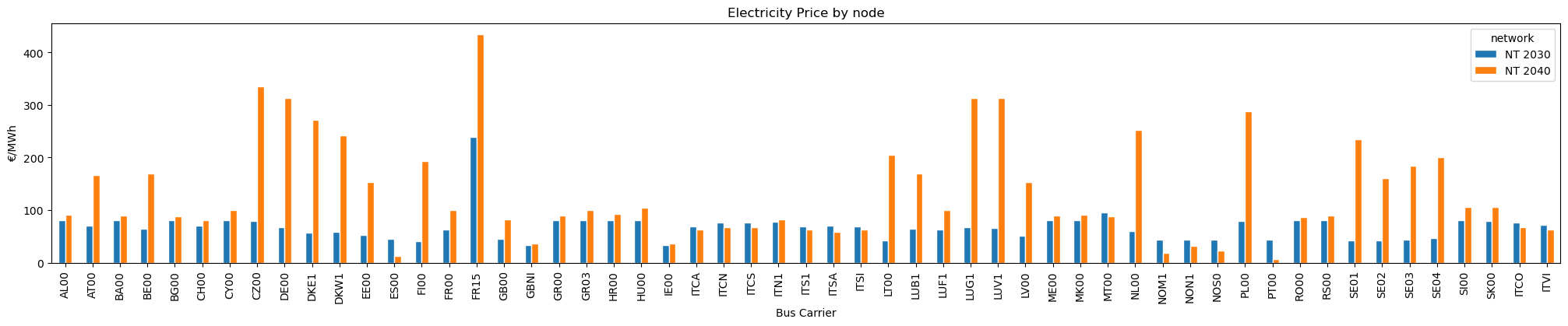
With this, we can extract electricity prices in the system across NT planning years. In line with the Market Model, we will aggregate the outputs using an average (weighting="time").
Note that you can easily choose if you want to calculate the price weighted by load instead by selecting weighting='load'.
| network |
NT 2030 |
NT 2040 |
| name |
|
|
| AL00 |
80.854 |
91.300 |
| AT00 |
70.461 |
167.147 |
| BA00 |
80.475 |
90.099 |
| BE00 |
64.460 |
169.947 |
| BG00 |
80.841 |
88.048 |
| CH00 |
69.952 |
80.298 |
| CY00 |
80.952 |
100.626 |
| CZ00 |
78.640 |
335.594 |
| DE00 |
66.885 |
312.534 |
| DKE1 |
57.100 |
271.531 |
For easier readability, we can plot them:
Note
Please keep in mind that the methodology used to implement hydrogen and electricity market coupling slightly differs from the TYNDP 2024 approach. Unlike the Market Model, which assumes a fixed hydrogen fuel price for hydrogen-to-power generation, Open-TYNDP couples electricity and hydrogen markets by using endogenous hydrogen fuel price for them. This results in high price spikes induced by load shedding in the coupled market. This is especially visible in the NT 2040 outcomes. Detailed electricity price benchmarks excluding load shedding are available on Zenodo.
PyPSA.Statistics plotting APIs
As we already introduced in a previous workshop, there is actually a quick way to explore the data with plots generated directly using the PyPSA.statistics module.
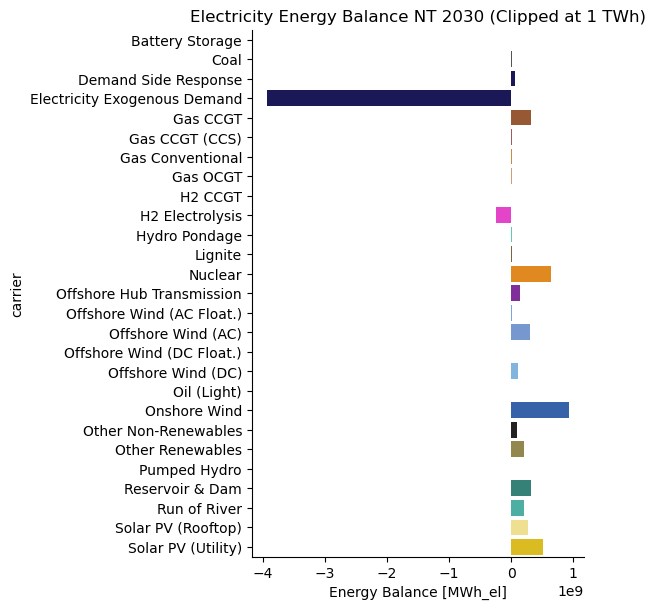
We can now explore the electricity energy balance for the NT 2030 network using this API directly.
…or we can even interactively explore the production of a specific technology in a specific country. For example January wind production in the Netherlands for NT 2030:
As you can see, in January the Netherland’s wind mix is largely dominated by Offshore Wind production.
And of course NetworkCollections also work with PyPSA.statistics quick plotting API. So we can have a look at the previous price plot but using statistics plotting directly:
Task 2: Grow comfortable with PyPSA.statistics
Familiarize yourself with the statistics module (again) and explore the latest outcomes of Open-TYNDP using the different methods and plots introduced today.
Hint: You can also refer to the introduction above for more information on the different methods and parameters of PyPSA.statistics.
Task 3: Reproduce Benchmarks
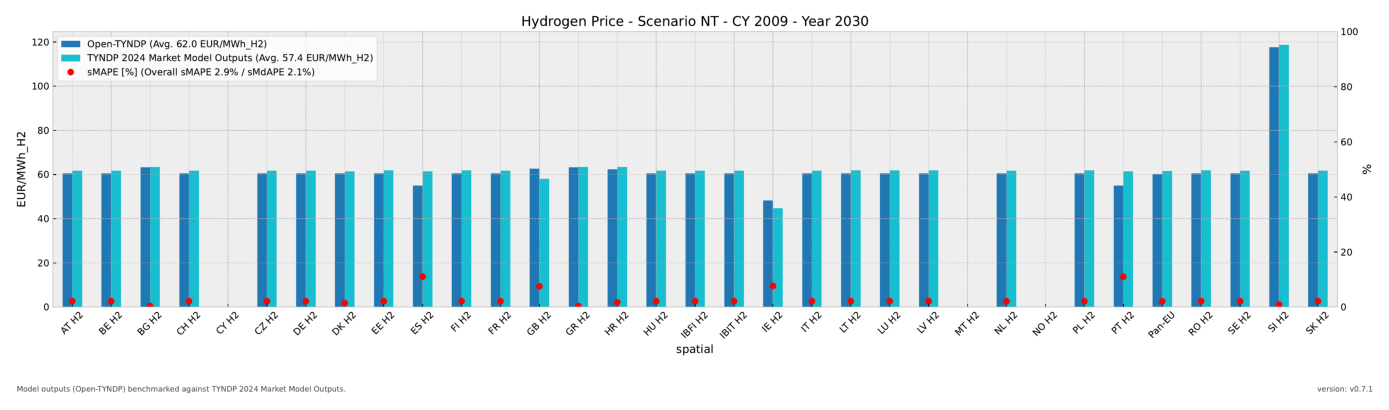
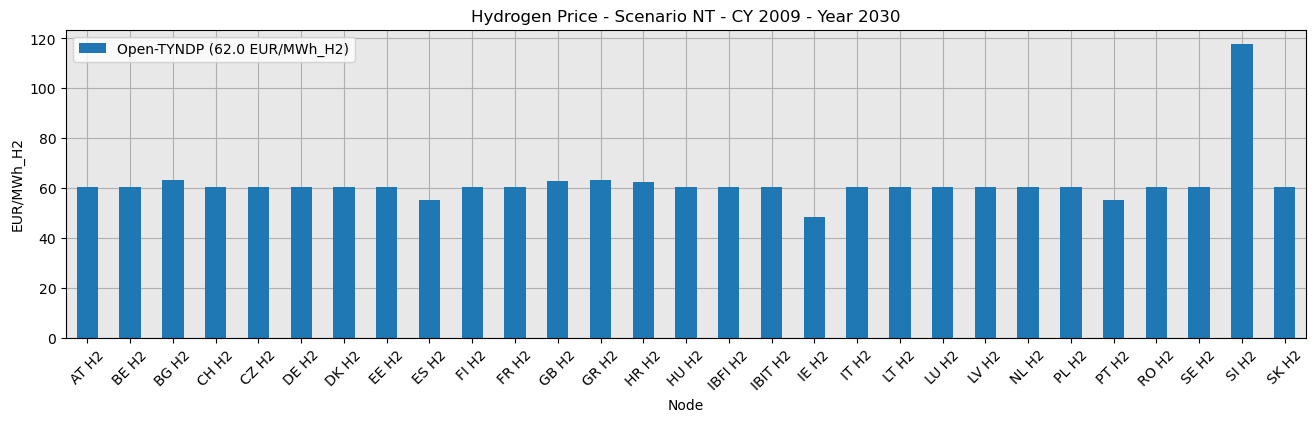
(a) If you feel comfortable using PyPSA.statistics, you can try to reproduce the Open-TYNDP outcomes from the following example of our latest benchmarking figures.
Try it without looking at the previous example first.
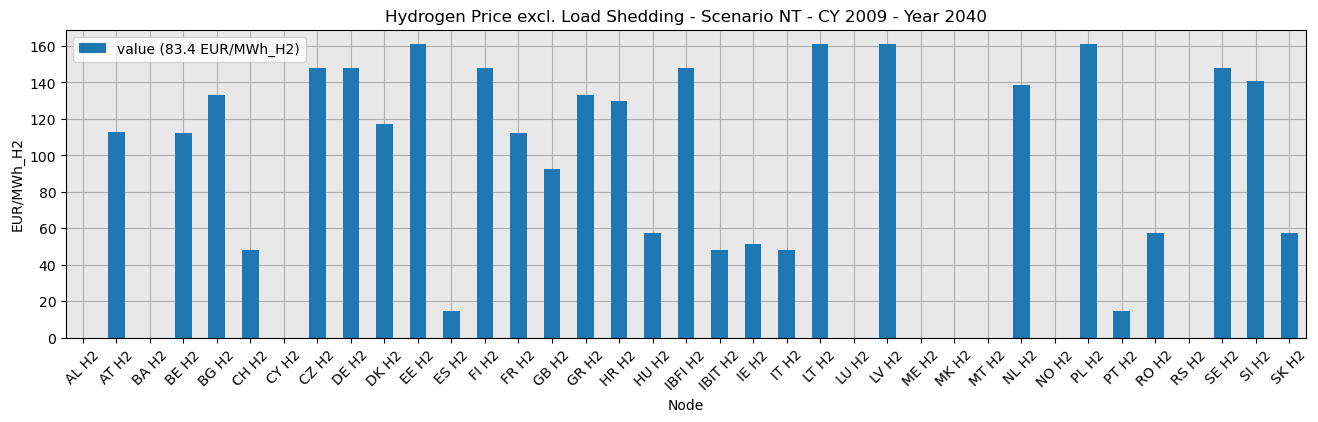
(b) Optional: Try to exclude load shedding from the hydrogen price in 2040.
Task 4 (Advanced): Inspect Outputs
(a) Can you verify the total amount of wind generated on Danish Offshore Hubs in 2040 at 43.55 TWh?
Hint: The Offshore Hub bus carrier is AC_OH. Remember to include the Bornholm Energy Island bus called BEIOH01.
(b) Can you verify that Germany is the largest net annual importer of H2 in 2040?
Hint: Look for carrier="H2 pipeline|import" in the energy balance. Remember that you can group by bus or country.
(c) Can you investigate the correlation between electricity mix and H2 production in Germany for the first week of June in 2040? What can we notice?
Cost-Benefit Analysis
Now that we’ve explored the Scenario Building (SB) results, let’s learn how to run Cost-Benefit Analysis (CBA)!
Clone the Open-TYNDP repository
First, navigate into the data/ folder:
Directory changed to: /home/runner/work/open-tyndp-workshops/open-tyndp-workshops/open-tyndp-workshops/data
Clone the Open-TYNDP repository directly:
Successfully cloned Open-TYNDP repository into local data folder!
Now, navigate into the the open-tyndp directory:
Directory changed to: /home/runner/work/open-tyndp-workshops/open-tyndp-workshops/open-tyndp-workshops/data/open-tyndp
Workflow management using Snakemake and pixi
~15 minutes
The Open-TYNDP CBA workflow involves many interconnected steps: from retrieving the SB network, to preparing the reference and project networks, to optimizing the networks, to calculating indicators.
To manage this complexity, Open-TYNDP uses two complementary tools:
Snakemake - A workflow management system that automatically figures out which analysis steps to run and in what order
pixi - A package manager that simplifies environment setup and provides easy-to-use shortcuts for running workflows
The combination of Snakemake and pixi allow Open-TYNDP to run with the flexibility to easily change configurations and run different scenarios.
Reminder: Snakemake

The Snakemake workflow management system is a tool to create reproducible and scalable data analyses.
Workflows are described via a human readable, Python based language. They can be seamlessly scaled to server, cluster, grid, and cloud environments, without the need to modify the workflow definition.
Snakemake follows the GNU Make paradigm: workflows are defined in terms of so-called rules that specify how to create a set of output files from a set of input files. Dependencies between the rules are determined automatically, creating a DAG (directed acyclic graph) of jobs that can be automatically parallelized.
Why does Open-TYNDP use Snakemake?
Running the full TYNDP analysis involves many steps that depend on each other.
Snakemake can automatically:
Determine which steps need to run based on what files already exist
Figure out the correct order to run them
Skip steps that don’t need to be re-run
Can run independent steps in parallel to save time
Using snakemake
Snakemake workflows can be triggered in different ways:
By target file: specify the final output you want (using results/my_output.nc as an example output file name)
snakemake -call results/my_output.nc
By rule name: call a specific step in the workflow (using build_data as an example rule/step name)
snakemake -call build_data
NOTE: You cannot call a rule that includes a wildcard without specifying what the wildcard should be filled with. Otherwise, Snakemake will not know what to propagate back.
By entire workflow: Use the common rule all to execute the entire workflow. It takes the final workflow output as its input and thus requires all previous dependent rules to be run as well
The dry-run flag (-n)
A very important feature is the -n flag which executes a dry-run. It is recommended to always first execute a dry-run before the actual execution of a workflow. This simply prints out the DAG of the workflow to investigate without actually executing it.
Introducing: pixi

pixi is a cross-platform, multi-language package management and workflow tool. It is built on the foundation of the conda ecosystem.
Why does Open-TYNDP use pixi?
pixi serves two important roles in the Open-TYNDP project:
1. Environment Management
pixi automatically installs all the required Python packages and their correct versions, similar to conda but faster and more reliable. Pixi helps us not have to worry about package conflicts or missing dependencies.
2. Simplified Commands
pixi also allows us to create shortcuts for long snakemake commands.
You can see the full Snakemake commands that pixi runs by looking in the pixi.toml file in the Open-TYNDP repository. For example, we have defined a shortcut for running the full CBA workflow, called tyndp-cba:
tyndp-cba-test = """bash -c '
    snakemake -call cba --configfile config/test/config.tyndp.yaml "$@" && \
    snakemake -call cba --configfile config/config.tyndp.yaml -n \
Using pixi
Without pixi (raw Snakemake), you would run this command to run the full CBA workflow:
snakemake -call cba --configfile config/config.tyndp.yaml
Using pixi, you just need to run:
For the remainder of this notebook, we will use pixi commands.
Installing Open-TYNDP
Note
If pixi was installed successfully but your shell still can’t find it, you may need to add it to your PATH manually. Use the following command to do so.
Use pixi to install the open-tyndp environment:
Coupled vs decoupled SB-CBA workflow
Before diving into the workflow, it helps to understand that there are two ways to run the CBA: (i) starting from scratch running first the SB, or (ii)using pre-solved networks we’ve already uploaded. The second option is much faster.
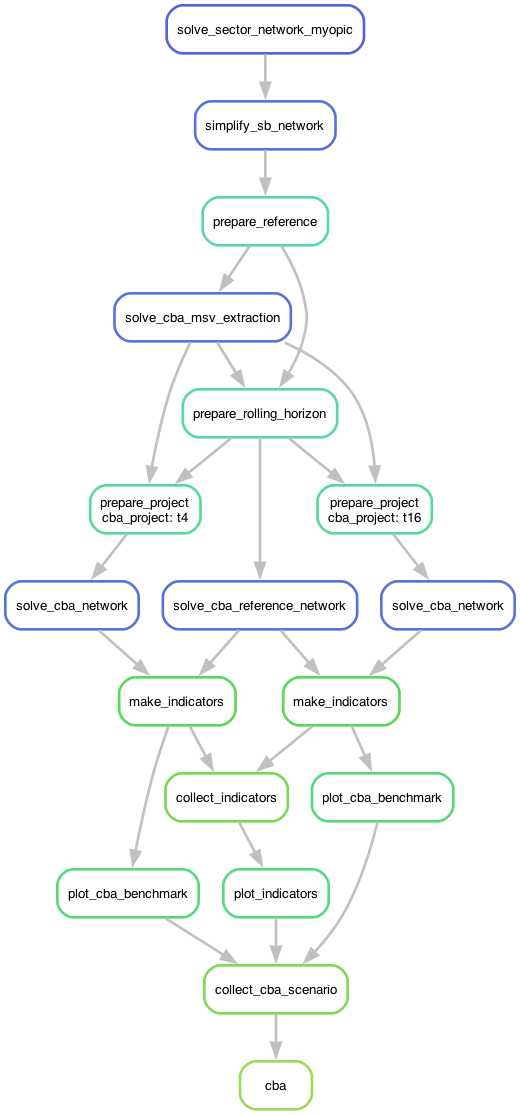
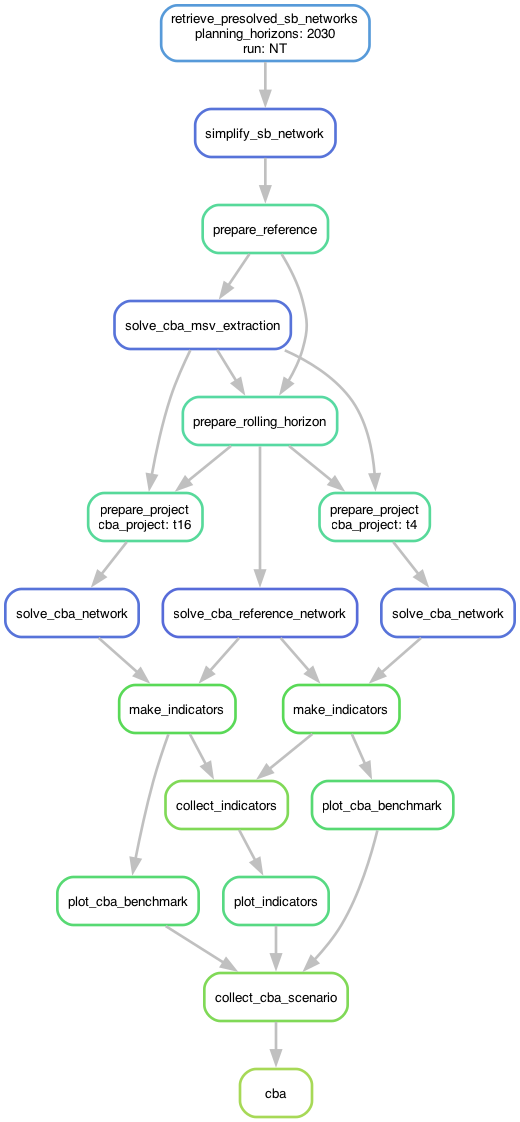
The two diagrams above illustrate the two different ways to run the CBA workflow:
Coupled Workflow (left):
Starts from scratch with the Scenario Building optimization
First solves the Scenario Building network (the solve_sector_network_myopic step)
Then continues on to perform the Cost-Benefit Analysis
Each CBA project goes through: prepare project -> optimize project and reference networks -> calculate indicators
Note: There are many rules (100+) that exist before solve_sector_network_myopic, but they are not included here for the diagram to be legible. With these diagrams, we mainly want to highlight the handoff between the SB process and the CBA process within the Open-TYNDP workflow.
Note: For each additional project you evaluate, the workflow adds more parallel branches. The diagram shows 2 projects just for illustrative purposes.
Decoupled Workflow (right):
Starts from pre-solved SB networks that we download from our releases
Skips all the Scenario Building steps – begins directly at the retrieve stage
The rest of the workflow is identical to the coupled approach
Much faster because we can skip the Scenario Building steps (including the optimization)
Coupled SB->CBA workflow
~20 minutes
Configuration Options
The Open-TYNDP workflow’s settings are housed in config/config.tyndp.yaml. Feel free to open the file to explore the full extent of configuration settings we have available.
One key parameter that affects both the SB and CBA processes is the run name, which sets what scenario(s) to run - for example, the parameter can be changed to “NT” to run just the NT scenario:
run:
  prefix: "tyndp"
  name: "all"
Some CBA-specific key parameters are:
cba:
  hurdle_costs: 0.01 # Transmission line marginal cost
  co2_societal_cost: # euros/t; 2024 CBA Implementation Guidelines, p. 68
    2030:
      low: 126
      central: 238
      high: 315
    2040:
      low: 339
      central: 628
      high: 662
  planning_horizons:
  - 2030
  - 2040
  cba_scenario_input:
    use_presolved: false
    sb_version: latest # use 'latest' or a supported version from data/versions.csv for pre-solved SB network input in CBA; only applies if use_presolved is true
  methods:
  - toot
  - pint
  projects:
  - t1-t35
You can modify the config settings within Open-TYNDP in two ways:
Edit the config file directly
Override via command line – For example, by adding the following to your command: --config 'run={"name":"NT"}' 'cba={"planning_horizons":[2030]}'
Tip
In practice, editing the YAML configuration files directly in a text editor or IDE is much easier than using command-line overrides. We’re using command-line options in this notebook for demonstration purposes, but for real life, we recommend modifying the config files directly!
Triggering a complete CBA run
As hinted earlier, the command pixi run tyndp-cba executes the complete CBA workflow:
Takes a solved Scenario Building network (either from scratch or using pre-solved network)
Prepares the CBA reference and project networks, for the specified project(s)
Evaluates each specified project using TOOT or PINT methodology
Calculates indicators (B1-B4)
First, let’s check what running the full workflow could look like by doing a dry-run of pixi run tyndp-cba:
Show code cell output
Hide code cell output
✨ Pixi task (tyndp-cba in open-tyndp):     snakemake -call cba --configfile config/config.tyndp.yaml -n -q rules
⠁
⠁ activating environment
⠁ activating environment
Using workflow specific profile profiles/default for setting default command line arguments.
Config file config/config.default.yaml is extended by additional config specified via the command line.
Config file config/plotting.default.yaml is extended by additional config specified via the command line.
Config file config/benchmarking.default.yaml is extended by additional config specified via the command line.
host: runnervm5mmn9
Building DAG of jobs...
Job stats:
job                                           count
------------------------------------------  -------
cba                                               1
clean_projects                                   12
collect_cba_scenario                             15
retreive_cba_guidelines_reference_projects        1
retrieve_tyndp                                    1
retrieve_tyndp_cba_projects                       1
total                                            31

DAG of jobs will be updated after completion.
DAG of jobs will be updated after completion.
DAG of jobs will be updated after completion.
DAG of jobs will be updated after completion.
DAG of jobs will be updated after completion.
DAG of jobs will be updated after completion.
DAG of jobs will be updated after completion.
DAG of jobs will be updated after completion.
DAG of jobs will be updated after completion.
DAG of jobs will be updated after completion.
DAG of jobs will be updated after completion.
DAG of jobs will be updated after completion.
Job stats:
job                                           count
------------------------------------------  -------
cba                                               1
clean_projects                                   12
collect_cba_scenario                             15
retreive_cba_guidelines_reference_projects        1
retrieve_tyndp                                    1
retrieve_tyndp_cba_projects                       1
total                                            31

Reasons:
    (check individual jobs above for details)
    input files updated by another job:
        cba, clean_projects, collect_cba_scenario
    output files have to be generated:
        clean_projects, collect_cba_scenario, retreive_cba_guidelines_reference_projects, retrieve_tyndp, retrieve_tyndp_cba_projects
This was a dry-run (flag -n). The order of jobs does not reflect the order of execution.
The run involves checkpoint jobs, which will result in alteration of the DAG of jobs (e.g. adding more jobs) after their completion.
We can specify the specific scenario (e.g, NT), the project (e.g., t4), and planning horizon (e.g., 2030) we want to run directly in the command line.
Show code cell output
Hide code cell output
✨ Pixi task (tyndp-cba in open-tyndp):     snakemake -call cba --configfile config/config.tyndp.yaml --config run={"name":"NT"} cba={"planning_horizons":[2030],"projects":["t4"]} -n -q rules
⠁
⠁ activating environment
⠁ activating environment
Using workflow specific profile profiles/default for setting default command line arguments.
Config file config/config.default.yaml is extended by additional config specified via the command line.
Config file config/plotting.default.yaml is extended by additional config specified via the command line.
Config file config/benchmarking.default.yaml is extended by additional config specified via the command line.
host: runnervm5mmn9
Building DAG of jobs...
Job stats:
job                                           count
------------------------------------------  -------
cba                                               1
clean_projects                                    1
collect_cba_scenario                              1
retreive_cba_guidelines_reference_projects        1
retrieve_tyndp                                    1
retrieve_tyndp_cba_projects                       1
total                                             6

DAG of jobs will be updated after completion.
Job stats:
job                                           count
------------------------------------------  -------
cba                                               1
clean_projects                                    1
collect_cba_scenario                              1
retreive_cba_guidelines_reference_projects        1
retrieve_tyndp                                    1
retrieve_tyndp_cba_projects                       1
total                                             6

Reasons:
    (check individual jobs above for details)
    input files updated by another job:
        cba, clean_projects, collect_cba_scenario
    output files have to be generated:
        clean_projects, collect_cba_scenario, retreive_cba_guidelines_reference_projects, retrieve_tyndp, retrieve_tyndp_cba_projects
This was a dry-run (flag -n). The order of jobs does not reflect the order of execution.
The run involves checkpoint jobs, which will result in alteration of the DAG of jobs (e.g. adding more jobs) after their completion.
Notice how the count of steps changed when we specified a single run, project, and horizon.
Comparatively, the default settings in Open-TYNDP is set to run:
NT, DE, GA, and all climate year variations of these scenarios
two planning horizons (2030 and 2040)
5 CBA projects (t4, t16, t28, t33, t35)
Thus, running the full default CBA workflow will trigger many, many more steps, since the DAG has to be expanded for all scenarios, planning horizons, and projects.
Checkpoints
You may notice above that the number of rules is actually quite low.
There is a checkpoint in the workflow, called clean_projects, that first checks how many projects are being asked to run before building out the full DAG.
It tells the workflow which CBA projects exist, which project IDs to run, and which method applies (TOOT/PINT).
Before the clean_projects step runs, Snakemake does not know the full list of project jobs it needs to create.
The step downloads and cleans the external CBA project database, tells the workflow the full list of projects available, which projects the user wants to evaluate, and how each should be evaluated.
After clean_projects finishes, Snakemake can read the cleaned CSV and expand the DAG into concrete jobs.
Thus, what we should do first here is run the workflow just up until the checkpoint, then only after that can we run the full workflow again – in which case, the DAG would show the actual number of jobs that would be run.
Show code cell output
Hide code cell output
✨ Pixi task (tyndp-checkpoint in open-tyndp):     snakemake -call cba --configfile config/config.tyndp.yaml --until clean_projects --config run={"name":"NT"} cba={"planning_horizons":[2030],"projects":["t4"]} -q rules
⠁
⠁ activating environment
⠁ activating environment
Using workflow specific profile profiles/default for setting default command line arguments.
Config file config/config.default.yaml is extended by additional config specified via the command line.
Config file config/plotting.default.yaml is extended by additional config specified via the command line.
Config file config/benchmarking.default.yaml is extended by additional config specified via the command line.
Assuming unrestricted shared filesystem usage.
Falling back to greedy scheduler because no ILP solver is found (you have to install pulp and either coincbc or glpk).
host: runnervm5mmn9
Building DAG of jobs...
Using shell: /usr/bin/bash
Provided cores: 4
Rules claiming more threads will be scaled down.
Conda environments: ignored
Job stats:
job                                           count
------------------------------------------  -------
clean_projects                                    1
retreive_cba_guidelines_reference_projects        1
retrieve_tyndp                                    1
retrieve_tyndp_cba_projects                       1
total                                             4

Select jobs to execute...
Execute 3 jobs...
Retrieving from storage: https://storage.googleapis.com/open-tyndp-data-store/cba/table_B1_CBA_Implementations_Guidelines_TYNDP2024.csv
Retrieving from storage: https://storage.googleapis.com/open-tyndp-data-store/CBA_projects.zip
Retrieving from storage: https://storage.googleapis.com/open-tyndp-data-store/2024/Line-data.zip
Retrieving from storage: https://storage.googleapis.com/open-tyndp-data-store/2024/Nodes.zip
Retrieving from storage: https://storage.googleapis.com/open-tyndp-data-store/2024/Hydro-Inflows.zip
Retrieving from storage: https://storage.googleapis.com/open-tyndp-data-store/2024/PEMMDB2.zip
Retrieving from storage: https://storage.googleapis.com/open-tyndp-data-store/2024/20240518-Supply-Tool.xlsm.zip
Retrieving from storage: https://storage.googleapis.com/open-tyndp-data-store/2024/TYNDP-2024-Scenarios-Package-20250128.zip
Retrieving from storage: https://storage.googleapis.com/open-tyndp-data-store/2024/Demand-Profiles.zip
Retrieving from storage: https://storage.googleapis.com/open-tyndp-data-store/2024/EV-Modelling-Inputs.zip
Retrieving from storage: https://storage.googleapis.com/open-tyndp-data-store/2024/Hybrid-Heat-Pump-Modelling-Inputs.zip
Retrieving from storage: https://storage.googleapis.com/open-tyndp-data-store/2024/Hydrogen.zip
Retrieving from storage: https://storage.googleapis.com/open-tyndp-data-store/2024/Investment-Datasets.zip
Retrieving from storage: https://storage.googleapis.com/open-tyndp-data-store/2024/Offshore-hubs.zip
Retrieving from storage: https://storage.googleapis.com/open-tyndp-data-store/2024/MMStandardOutputFile_NT2030_Plexos_CY2009_2.5_v40.xlsx.zip
Retrieving from storage: https://storage.googleapis.com/open-tyndp-data-store/2024/MMStandardOutputFile_NT2040_Plexos_CY2009_2.5_v40.xlsx.zip
Retrieving from storage: https://storage.googleapis.com/open-tyndp-data-store/2024/StartingGrid2030.xlsx.zip
Cached table_B1_CBA_Implementations_Guidelines_TYNDP2024.csv to /home/runner/.cache/snakemake-pypsa-eur
Finished retrieval.
Cached Line-data.zip to /home/runner/.cache/snakemake-pypsa-eur
Finished retrieval.
Cached Nodes.zip to /home/runner/.cache/snakemake-pypsa-eur
Finished retrieval.
Cached CBA_projects.zip to /home/runner/.cache/snakemake-pypsa-eur
Finished retrieval.
Cached 20240518-Supply-Tool.xlsm.zip to /home/runner/.cache/snakemake-pypsa-eur
Finished retrieval.
Cached Hydro-Inflows.zip to /home/runner/.cache/snakemake-pypsa-eur
Finished retrieval.
Cached TYNDP-2024-Scenarios-Package-20250128.zip to /home/runner/.cache/snakemake-pypsa-eur
Finished retrieval.
Cached EV-Modelling-Inputs.zip to /home/runner/.cache/snakemake-pypsa-eur
Finished retrieval.
Cached PEMMDB2.zip to /home/runner/.cache/snakemake-pypsa-eur
Finished retrieval.
Cached Hydrogen.zip to /home/runner/.cache/snakemake-pypsa-eur
Finished retrieval.
Cached Investment-Datasets.zip to /home/runner/.cache/snakemake-pypsa-eur
Finished retrieval.
Cached Offshore-hubs.zip to /home/runner/.cache/snakemake-pypsa-eur
Finished retrieval.
Cached Hybrid-Heat-Pump-Modelling-Inputs.zip to /home/runner/.cache/snakemake-pypsa-eur
Finished retrieval.
Cached MMStandardOutputFile_NT2030_Plexos_CY2009_2.5_v40.xlsx.zip to /home/runner/.cache/snakemake-pypsa-eur
Finished retrieval.
Cached StartingGrid2030.xlsx.zip to /home/runner/.cache/snakemake-pypsa-eur
Finished retrieval.
Cached MMStandardOutputFile_NT2040_Plexos_CY2009_2.5_v40.xlsx.zip to /home/runner/.cache/snakemake-pypsa-eur
Finished retrieval.
Cached Demand-Profiles.zip to /home/runner/.cache/snakemake-pypsa-eur
Finished retrieval.
Removing local copy of storage file: https://storage.googleapis.com/open-tyndp-data-store/CBA_projects.zip (in storage)
[Thu Jul  9 12:05:03 2026]
Finished jobid: 3 (Rule: retrieve_tyndp_cba_projects)
1 of 6 steps (17%) done
Removing local copy of storage file: https://storage.googleapis.com/open-tyndp-data-store/cba/table_B1_CBA_Implementations_Guidelines_TYNDP2024.csv (in storage)
[Thu Jul  9 12:05:04 2026]
Finished jobid: 5 (Rule: retreive_cba_guidelines_reference_projects)
2 of 6 steps (33%) done
Removing local copy of storage file: https://storage.googleapis.com/open-tyndp-data-store/2024/Line-data.zip (in storage)
Removing local copy of storage file: https://storage.googleapis.com/open-tyndp-data-store/2024/Nodes.zip (in storage)
Removing local copy of storage file: https://storage.googleapis.com/open-tyndp-data-store/2024/Hydro-Inflows.zip (in storage)
Removing local copy of storage file: https://storage.googleapis.com/open-tyndp-data-store/2024/PEMMDB2.zip (in storage)
Removing local copy of storage file: https://storage.googleapis.com/open-tyndp-data-store/2024/20240518-Supply-Tool.xlsm.zip (in storage)
Removing local copy of storage file: https://storage.googleapis.com/open-tyndp-data-store/2024/TYNDP-2024-Scenarios-Package-20250128.zip (in storage)
Removing local copy of storage file: https://storage.googleapis.com/open-tyndp-data-store/2024/Demand-Profiles.zip (in storage)
Removing local copy of storage file: https://storage.googleapis.com/open-tyndp-data-store/2024/EV-Modelling-Inputs.zip (in storage)
Removing local copy of storage file: https://storage.googleapis.com/open-tyndp-data-store/2024/Hybrid-Heat-Pump-Modelling-Inputs.zip (in storage)
Removing local copy of storage file: https://storage.googleapis.com/open-tyndp-data-store/2024/Hydrogen.zip (in storage)
Removing local copy of storage file: https://storage.googleapis.com/open-tyndp-data-store/2024/Investment-Datasets.zip (in storage)
Removing local copy of storage file: https://storage.googleapis.com/open-tyndp-data-store/2024/Offshore-hubs.zip (in storage)
Removing local copy of storage file: https://storage.googleapis.com/open-tyndp-data-store/2024/MMStandardOutputFile_NT2030_Plexos_CY2009_2.5_v40.xlsx.zip (in storage)
Removing local copy of storage file: https://storage.googleapis.com/open-tyndp-data-store/2024/MMStandardOutputFile_NT2040_Plexos_CY2009_2.5_v40.xlsx.zip (in storage)
Removing local copy of storage file: https://storage.googleapis.com/open-tyndp-data-store/2024/StartingGrid2030.xlsx.zip (in storage)
[Thu Jul  9 12:05:19 2026]
Finished jobid: 4 (Rule: retrieve_tyndp)
3 of 6 steps (50%) done
Select jobs to execute...
Execute 1 jobs...
DAG of jobs will be updated after completion.
WARNING:__main__:76 out of 214 extensions do not follow the simple <bus0>-<bus1> format or are not defined in the base network, ignoring them:
 project_id                             project_name            border
          1                 RES in north of Portugal      internalPT00
         29                            Italy-Tunisia         ITSI-TN00
         85           Integration of RES in Alentejo       internaPT00
         94                      GerPol Improvements         DE00-PLI0
         94                      GerPol Improvements         PLI0-PL00
        120        Princess Elisabeth Island (MOG 2)      internalBE00
        130 HVDC SuedOstLink Wolmirstedt to area ...      internalDE00
        132                        HVDC Line A-North      internalDE00
        219                 Great Sea Interconnector         CY00-IL00
        235 HVDC SuedLink Brunsbüttel/Wilster to ...          DE00-DKW
        235 HVDC SuedLink Brunsbüttel/Wilster to ...      internalDE00
        254   HVDC Ultranet Osterath to Philippsburg      internalDE00
        283                              TuNur Italy ITCS-TN00isolated
        299                                  SACOI 3       FR15 - ITCO
        329 Stevin-Izegem/Avelgem (Ventilus): new...      internalBE00
        335                 North Sea Wind Power Hub      DE00-DK/NL00
        340 Avelgem-Courcelles (Boucle du Hainaut...      internalBE00
        378                       Transformer Gatica      internalES00
        379                      Uprate Gatica lines      internalES00
       1034 HVDC corridor from Northern Germany t...          DE00-DKW
       1034 HVDC corridor from Northern Germany t...      internalDE00
       1041        GREGY Green Energy Interconnector         GR00-EG00
       1046        Finnish North-South reinforcement      internalFI00
       1048 Greece - Africa Power Interconnector ...         GR03-EG00
       1066                        Bulgaria - Turkey         BG00-TR00
       1067 New AC 400 kV interconnection line Gr...         GR00-TR00
       1086 Estonia internal grid reinforcement t...      EE00internal
       1088 Latvia and Estonia Hybrid Off-Shore i...          EE00-OBZ
       1088 Latvia and Estonia Hybrid Off-Shore i...          OBZ-LV00
       1092 TritonLink: offshore hybrid HVDC inte...        BE00-DKOBZ
       1092 TritonLink: offshore hybrid HVDC inte...        DKW1-DKOBZ
       1098                       Offshore Wind LT 2        LTOffshore
       1105 Georgia-Romania Black Sea (submarine)...         GE00-RO00
       1106             Bornholm Energy Island (BEI)    DE00-BolEnergy
       1106             Bornholm Energy Island (BEI)    BolEnergy-DKE1
       1121 220-kV Hessenberg (AT) - Weißenbach (AT)        ATInternal
       1122 Offshore Wind farm connection Centre ...        FROffshore
       1123 Offshore Wind farm connection Centre ...        FROffshore
       1124  Offshore Wind Connection South Britanny        FROffshore
       1125       Offshore Wind Connection Occitanie        FROffshore
       1126            Offshore Wind Connection PACA        FROffshore
       1127 Offshore Wind Connection South Atlant...        FROffshore
       1134                                     GiLA      FR00Internal
       1138     400 kV OHL Suceava (RO) - Balti (MD)         MD00-RO00
       1139 380-kV Westtirol (AT)  – Zell/Ziller ...        ATInternal
       1145 380-kV Obersielach (AT) - Hessenberg ...        ATInternal
       1155 380-kV Burgenland North (AT) - Sarasd...        ATInternal
       1156 380-kV Greater Vienna (AT) - Hessenbe...        ATInternal
       1158 380-kV Bisamberg (AT) – Gaweinstal (A...        ATInternal
       1159 220-kV Bisamberg (AT) – Wien Südost (AT)        ATInternal
       1161 Offshore Wind Connection South Atlant...      FR00Internal
       1162 Offshore Wind Connection Fécamp-Grand...      FR00Internal
       1163 Offshore Wind Connection Fécamp-Grand...      FR00Internal
       1164 Offshore Wind Connection Golfe de Lio...      FR00Internal
       1165 Offshore Wind Connection Golfe de Gas...      FR00Internal
       1185 South Coast Offshore Transmission Pro...      IE00Internal
       1200 Hybrid interconnector Norway-Sørvest ...         DE00-NO00
       1203 Offshore Wind Connection Bretagne Nor...      FR00Internal
       1208                                  Medlink ITCN-TN00Isolated
       1208                                  Medlink DZ00Isolated-ITN1
       1211               Baltic WindConnector (BWC)         EEOF-DE00
       1215                 Xlinks Morocco - Germany DE00-MA00isolated
       1217 Further Development of Offshore Renew...      BE00Internal
       1218         Hybrid HVDC Interconnector BE-NL         BE00-NL60
       1220 Offshore Wind Connection Viana do Cas...      PT00Internal
       1221         Offshore Wind Connection Leixões      PT00Internal
       1222 Offshore Wind Connection Figueira da ...      PT00Internal
       1223 Offshore Wind Connection Figueira da ...      PT00Internal
       1224        Offshore Wind Connection Ericeira      PT00Internal
       1225           Offshore Wind Connection Sines      PT00Internal
       1229                          Rhine-Main-Link      internalDE00
       1230                              TuNur Malta TN00Isolated-MT00
       1234   220-kV Reitdorf (AT) - Weißenbach (AT)        ATInternal
       1236         Power-to-Gas for Austria (P2G4A)              AT00
       1239  Interconnection Ukraine-Slovak Republic               NaN
       1240          Interconnection Ukraine-Romania               NaN
WARNING:__main__:15 out of 214 extensions have no capacity, ignoring them:
 project_id                             project_name       border
        335                 North Sea Wind Power Hub DE00-DK/NL00
        378                       Transformer Gatica internalES00
        379                      Uprate Gatica lines internalES00
       1139 380-kV Westtirol (AT)  – Zell/Ziller ...   ATInternal
       1155 380-kV Burgenland North (AT) - Sarasd...   ATInternal
       1156 380-kV Greater Vienna (AT) - Hessenbe...   ATInternal
       1158 380-kV Bisamberg (AT) – Gaweinstal (A...   ATInternal
       1159 220-kV Bisamberg (AT) – Wien Südost (AT)   ATInternal
       1192                      HansaLink - Phase 1    DE00-UK00
       1193                      HansaLink - Phase 2    DE00-UK00
       1214    Hybrid Interconnector Denmark-Germany    DE00-DKW1
       1217 Further Development of Offshore Renew... BE00Internal
       1236         Power-to-Gas for Austria (P2G4A)         AT00
       1239  Interconnection Ukraine-Slovak Republic          NaN
       1240          Interconnection Ukraine-Romania          NaN
INFO:__main__:Removed 'Up to ' capacity prefix from 2 projects:
Redipuglia (IT) - Vrtojba (SI) interconnection, Dekani (SI) - Zaule (IT) interconnection
INFO:__main__:Storage project extraction not yet implemented, returning empty DataFrame
[Thu Jul  9 12:05:27 2026]
Finished jobid: 2 (Rule: clean_projects)
4 of 6 steps (67%) done
Complete log(s): /home/runner/work/open-tyndp-workshops/open-tyndp-workshops/open-tyndp-workshops/data/open-tyndp/.snakemake/log/2026-07-09T120414.397883.snakemake.log
Now that the checkpoint is complete, we can re-check the DAG of how many steps are needed to run the CBA workflow.
Show code cell output
Hide code cell output
✨ Pixi task (tyndp-cba in open-tyndp):     snakemake -call cba --configfile config/config.tyndp.yaml --config run={"name":"NT"} cba={"planning_horizons":[2030],"projects":["t4"]} -n -q rules
⠁
⠁ activating environment
⠁ activating environment
Using workflow specific profile profiles/default for setting default command line arguments.
Config file config/config.default.yaml is extended by additional config specified via the command line.
Config file config/plotting.default.yaml is extended by additional config specified via the command line.
Config file config/benchmarking.default.yaml is extended by additional config specified via the command line.
host: runnervm5mmn9
Building DAG of jobs...
Updating checkpoint dependencies.
Job stats:
job                                           count
------------------------------------------  -------
add_electricity                                   1
add_existing_baseyear                             1
add_transmission_projects_and_dlr                 1
base_network                                      1
build_bidding_zones                               1
build_biomass_potentials                          1
build_central_heating_temperature_profiles        1
build_clustered_population_layouts                1
build_cop_profiles                                1
build_district_heat_share                         1
build_electricity_demand_base_tyndp               1
build_electricity_demand_tyndp                    1
build_energy_totals                               1
build_eurostat_balances                           1
build_existing_heating_distribution               1
build_gas_input_locations                         1
build_gas_network                                 1
build_heat_totals                                 1
build_osm_boundaries                              4
build_pemmdb_data                                 1
build_population_layouts                          1
build_population_weighted_energy_totals           2
build_powerplants                                 1
build_renewable_profiles_pecd                     4
build_salt_cavern_potentials                      1
build_shapes                                      1
build_shipping_demand                             1
build_snapshot_weightings                         1
build_swiss_energy_balances                       1
build_temperature_profiles                        1
build_transport_demand                            1
build_tyndp_gas_demand                            1
build_tyndp_h2_imports                            1
build_tyndp_h2_network                            1
build_tyndp_hydro_profile                         1
build_tyndp_network                               1
build_tyndp_offshore_hubs                         1
build_tyndp_trajectories                          1
cba                                               1
clean_pecd_data                                   8
clean_tyndp_electricity_demand                    1
clean_tyndp_h2_imports                            1
clean_tyndp_h2_storages                           1
clean_tyndp_hydro_inflows                        10
clean_tyndp_indicators                            1
clean_tyndp_output_benchmark                      1
clean_tyndp_smr                                   1
cluster_gas_network                               1
cluster_network                                   1
collect_cba_scenario                              1
collect_indicators                                1
fix_reference_sb_to_cba                           1
make_indicators                                   1
plot_cba_benchmark                                1
plot_indicators                                   1
prepare_network                                   1
prepare_project                                   1
prepare_reference                                 1
prepare_rolling_horizon                           1
prepare_sector_network                            1
process_cost_data                                 2
retrieve_attributed_ports                         1
retrieve_bfs_gdp_and_population                   1
retrieve_bfs_road_vehicle_stock                   1
retrieve_bidding_zones_electricitymaps            1
retrieve_bidding_zones_entsoepy                   1
retrieve_cost_data                                2
retrieve_countries_centroids                      1
retrieve_country_hdd                              1
retrieve_cutout                                   1
retrieve_eez                                      1
retrieve_enspreso_biomass                         1
retrieve_eu_nuts_2013                             1
retrieve_eu_nuts_2021                             1
retrieve_eurostat_balances                        1
retrieve_eurostat_household_balances              1
retrieve_gas_infrastructure_data                  1
retrieve_gdp_per_capita                           1
retrieve_gem_europe_gas_tracker                   1
retrieve_ghg_emissions                            1
retrieve_h2_salt_caverns                          1
retrieve_jrc_ardeco                               1
retrieve_jrc_idees                                1
retrieve_mobility_profiles                        1
retrieve_nuts3_population                         1
retrieve_osm_boundaries                           1
retrieve_population_count                         1
retrieve_powerplants                              1
retrieve_swiss_energy_balances                    1
retrieve_tyndp_cba_non_co2_emissions              1
retrieve_tyndp_nuclear_profiles                   1
retrieve_tyndp_pecd                               1
retrieve_worldbank_urban_population               1
simplify_network                                  1
simplify_sb_network                               1
solve_cba_msv_extraction                          1
solve_cba_network                                 1
solve_cba_reference_network                       1
solve_sector_network_myopic                       1
temporal_aggregation                              1
total                                           125
Job stats:
job                                           count
------------------------------------------  -------
add_electricity                                   1
add_existing_baseyear                             1
add_transmission_projects_and_dlr                 1
base_network                                      1
build_bidding_zones                               1
build_biomass_potentials                          1
build_central_heating_temperature_profiles        1
build_clustered_population_layouts                1
build_cop_profiles                                1
build_district_heat_share                         1
build_electricity_demand_base_tyndp               1
build_electricity_demand_tyndp                    1
build_energy_totals                               1
build_eurostat_balances                           1
build_existing_heating_distribution               1
build_gas_input_locations                         1
build_gas_network                                 1
build_heat_totals                                 1
build_osm_boundaries                              4
build_pemmdb_data                                 1
build_population_layouts                          1
build_population_weighted_energy_totals           2
build_powerplants                                 1
build_renewable_profiles_pecd                     4
build_salt_cavern_potentials                      1
build_shapes                                      1
build_shipping_demand                             1
build_snapshot_weightings                         1
build_swiss_energy_balances                       1
build_temperature_profiles                        1
build_transport_demand                            1
build_tyndp_gas_demand                            1
build_tyndp_h2_imports                            1
build_tyndp_h2_network                            1
build_tyndp_hydro_profile                         1
build_tyndp_network                               1
build_tyndp_offshore_hubs                         1
build_tyndp_trajectories                          1
cba                                               1
clean_pecd_data                                   8
clean_tyndp_electricity_demand                    1
clean_tyndp_h2_imports                            1
clean_tyndp_h2_storages                           1
clean_tyndp_hydro_inflows                        10
clean_tyndp_indicators                            1
clean_tyndp_output_benchmark                      1
clean_tyndp_smr                                   1
cluster_gas_network                               1
cluster_network                                   1
collect_cba_scenario                              1
collect_indicators                                1
fix_reference_sb_to_cba                           1
make_indicators                                   1
plot_cba_benchmark                                1
plot_indicators                                   1
prepare_network                                   1
prepare_project                                   1
prepare_reference                                 1
prepare_rolling_horizon                           1
prepare_sector_network                            1
process_cost_data                                 2
retrieve_attributed_ports                         1
retrieve_bfs_gdp_and_population                   1
retrieve_bfs_road_vehicle_stock                   1
retrieve_bidding_zones_electricitymaps            1
retrieve_bidding_zones_entsoepy                   1
retrieve_cost_data                                2
retrieve_countries_centroids                      1
retrieve_country_hdd                              1
retrieve_cutout                                   1
retrieve_eez                                      1
retrieve_enspreso_biomass                         1
retrieve_eu_nuts_2013                             1
retrieve_eu_nuts_2021                             1
retrieve_eurostat_balances                        1
retrieve_eurostat_household_balances              1
retrieve_gas_infrastructure_data                  1
retrieve_gdp_per_capita                           1
retrieve_gem_europe_gas_tracker                   1
retrieve_ghg_emissions                            1
retrieve_h2_salt_caverns                          1
retrieve_jrc_ardeco                               1
retrieve_jrc_idees                                1
retrieve_mobility_profiles                        1
retrieve_nuts3_population                         1
retrieve_osm_boundaries                           1
retrieve_population_count                         1
retrieve_powerplants                              1
retrieve_swiss_energy_balances                    1
retrieve_tyndp_cba_non_co2_emissions              1
retrieve_tyndp_nuclear_profiles                   1
retrieve_tyndp_pecd                               1
retrieve_worldbank_urban_population               1
simplify_network                                  1
simplify_sb_network                               1
solve_cba_msv_extraction                          1
solve_cba_network                                 1
solve_cba_reference_network                       1
solve_sector_network_myopic                       1
temporal_aggregation                              1
total                                           125

Reasons:
    (check individual jobs above for details)
    input files updated by another job:
        add_electricity, add_existing_baseyear, add_transmission_projects_and_dlr, base_network, build_bidding_zones, build_biomass_potentials, build_central_heating_temperature_profiles, build_clustered_population_layouts, build_cop_profiles, build_district_heat_share, build_electricity_demand_base_tyndp, build_electricity_demand_tyndp, build_energy_totals, build_eurostat_balances, build_existing_heating_distribution, build_gas_input_locations, build_gas_network, build_heat_totals, build_osm_boundaries, build_pemmdb_data, build_population_layouts, build_population_weighted_energy_totals, build_powerplants, build_renewable_profiles_pecd, build_salt_cavern_potentials, build_shapes, build_shipping_demand, build_snapshot_weightings, build_swiss_energy_balances, build_temperature_profiles, build_transport_demand, build_tyndp_h2_imports, build_tyndp_hydro_profile, build_tyndp_network, cba, clean_pecd_data, clean_tyndp_h2_imports, clean_tyndp_hydro_inflows, cluster_gas_network, cluster_network, collect_cba_scenario, collect_indicators, fix_reference_sb_to_cba, make_indicators, plot_cba_benchmark, plot_indicators, prepare_network, prepare_project, prepare_reference, prepare_rolling_horizon, ...
    output files have to be generated:
        add_electricity, add_existing_baseyear, add_transmission_projects_and_dlr, base_network, build_bidding_zones, build_biomass_potentials, build_central_heating_temperature_profiles, build_clustered_population_layouts, build_cop_profiles, build_district_heat_share, build_electricity_demand_base_tyndp, build_electricity_demand_tyndp, build_energy_totals, build_eurostat_balances, build_existing_heating_distribution, build_gas_input_locations, build_gas_network, build_heat_totals, build_osm_boundaries, build_pemmdb_data, build_population_layouts, build_population_weighted_energy_totals, build_powerplants, build_renewable_profiles_pecd, build_salt_cavern_potentials, build_shapes, build_shipping_demand, build_snapshot_weightings, build_swiss_energy_balances, build_temperature_profiles, build_transport_demand, build_tyndp_gas_demand, build_tyndp_h2_imports, build_tyndp_h2_network, build_tyndp_hydro_profile, build_tyndp_network, build_tyndp_offshore_hubs, build_tyndp_trajectories, clean_pecd_data, clean_tyndp_electricity_demand, clean_tyndp_h2_imports, clean_tyndp_h2_storages, clean_tyndp_hydro_inflows, clean_tyndp_indicators, clean_tyndp_output_benchmark, clean_tyndp_smr, cluster_gas_network, cluster_network, collect_cba_scenario, collect_indicators, ...
This was a dry-run (flag -n). The order of jobs does not reflect the order of execution.
Task 5: Modify Configuration Files Directly
So far, we’ve been setting the run settings via the command line. However, as we’ve mentioned, in real life it’s much easier to go into the config files and edit them directly. So let’s do that for the settings we’ve been running the CBA with so far:
NT run
2030 planning horizon
t4 project
Instructions:
Open config/scenarios.tyndp.yaml
Find the NT scenario definition (it’s the first one)
Modify the NT scenario so that it looks like this:
NT:
  tyndp_scenario: NT

  cba:
    planning_horizons: [2030]
    projects: ["t4"]
Save the file
Open config/config.tyndp.yaml in a text editor
Set run: name: to "NT". The top section of your file should look like:
run:
  prefix: "tyndp"
  name: "NT"
Save the file
Come back to this notebook to run the checkpoint: ! pixi run tyndp-checkpoint
Then run the dry-run: ! pixi run tyndp-cba -n
You should see the same number of steps as when we ran ! pixi run tyndp-cba --config 'run={"name":"NT"}' 'cba={"planning_horizons":[2030],"projects":["t4"]}' -n above.
Now you can run the CBA workflow without needing to specify configuration overrides on the command line!
Run different and multiple climate years
~15 minutes
Understanding Climate Years
Energy system performance varies significantly with weather conditions - wind and solar availability change year to year, as do heating and cooling demands. To account for this variability, Open-TYNDP can evaluate scenarios using different historical climate years.
Climate year scenarios are defined in config/scenarios.tyndp.yaml. For example:
NT-cy2008:
#  <<: *cba-common
  snapshots:
    start: "2008-01-01"
    end: "2009-01-01"

  atlite:
    default_cutout: europe-2008-sarah3-era5

  cba:
    sb_scenario: NT
The following climate year scenarios related to the NT scenario are already existing in the Open-TYNDP workflow:
NT-cy1995: NT scenario using 1995 weather data
NT-cy2008: NT scenario using 2008 weather data
NT-cy2009: NT scenario using 2009 weather data
NT-cyears: Runs all 3 NT scenarios: NT-cy1995, NT-cy2008, and NT-cy2009
The NY-cyears scenario acts somewhat as a collection scenario for the 3 climate years and is defined in config/scenarios.tyndp.yaml as well:
NT-cyears:
  cba:
    scenarios: [NT-cy2009, NT-cy2008, NT-cy1995]
How can we run the CBA workflow for a different climate year? First, we again need to run up to the checkpoint for the different climate years:
Show code cell output
Hide code cell output
✨ Pixi task (tyndp-checkpoint in open-tyndp):     snakemake -call cba --configfile config/config.tyndp.yaml --until clean_projects --config run={"name":["NT-cy2008", "NT-cy2009", "NT-cy1995"]} cba={"planning_horizons":[2030],"projects":["t4"]} -q rules
⠁
⠁ activating environment
⠁ activating environment
Using workflow specific profile profiles/default for setting default command line arguments.
Config file config/config.default.yaml is extended by additional config specified via the command line.
Config file config/plotting.default.yaml is extended by additional config specified via the command line.
Config file config/benchmarking.default.yaml is extended by additional config specified via the command line.
Assuming unrestricted shared filesystem usage.
Falling back to greedy scheduler because no ILP solver is found (you have to install pulp and either coincbc or glpk).
host: runnervm5mmn9
Building DAG of jobs...
Using shell: /usr/bin/bash
Provided cores: 4
Rules claiming more threads will be scaled down.
Conda environments: ignored
Job stats:
job               count
--------------  -------
clean_projects        3
total                 3

Select jobs to execute...
Execute 3 jobs...
DAG of jobs will be updated after completion.
DAG of jobs will be updated after completion.
DAG of jobs will be updated after completion.
WARNING:__main__:76 out of 214 extensions do not follow the simple <bus0>-<bus1> format or are not defined in the base network, ignoring them:
 project_id                             project_name            border
          1                 RES in north of Portugal      internalPT00
         29                            Italy-Tunisia         ITSI-TN00
         85           Integration of RES in Alentejo       internaPT00
         94                      GerPol Improvements         DE00-PLI0
         94                      GerPol Improvements         PLI0-PL00
        120        Princess Elisabeth Island (MOG 2)      internalBE00
        130 HVDC SuedOstLink Wolmirstedt to area ...      internalDE00
        132                        HVDC Line A-North      internalDE00
        219                 Great Sea Interconnector         CY00-IL00
        235 HVDC SuedLink Brunsbüttel/Wilster to ...          DE00-DKW
        235 HVDC SuedLink Brunsbüttel/Wilster to ...      internalDE00
        254   HVDC Ultranet Osterath to Philippsburg      internalDE00
        283                              TuNur Italy ITCS-TN00isolated
        299                                  SACOI 3       FR15 - ITCO
        329 Stevin-Izegem/Avelgem (Ventilus): new...      internalBE00
        335                 North Sea Wind Power Hub      DE00-DK/NL00
        340 Avelgem-Courcelles (Boucle du Hainaut...      internalBE00
        378                       Transformer Gatica      internalES00
        379                      Uprate Gatica lines      internalES00
       1034 HVDC corridor from Northern Germany t...          DE00-DKW
       1034 HVDC corridor from Northern Germany t...      internalDE00
       1041        GREGY Green Energy Interconnector         GR00-EG00
       1046        Finnish North-South reinforcement      internalFI00
       1048 Greece - Africa Power Interconnector ...         GR03-EG00
       1066                        Bulgaria - Turkey         BG00-TR00
       1067 New AC 400 kV interconnection line Gr...         GR00-TR00
       1086 Estonia internal grid reinforcement t...      EE00internal
       1088 Latvia and Estonia Hybrid Off-Shore i...          EE00-OBZ
       1088 Latvia and Estonia Hybrid Off-Shore i...          OBZ-LV00
       1092 TritonLink: offshore hybrid HVDC inte...        BE00-DKOBZ
       1092 TritonLink: offshore hybrid HVDC inte...        DKW1-DKOBZ
       1098                       Offshore Wind LT 2        LTOffshore
       1105 Georgia-Romania Black Sea (submarine)...         GE00-RO00
       1106             Bornholm Energy Island (BEI)    DE00-BolEnergy
       1106             Bornholm Energy Island (BEI)    BolEnergy-DKE1
       1121 220-kV Hessenberg (AT) - Weißenbach (AT)        ATInternal
       1122 Offshore Wind farm connection Centre ...        FROffshore
       1123 Offshore Wind farm connection Centre ...        FROffshore
       1124  Offshore Wind Connection South Britanny        FROffshore
       1125       Offshore Wind Connection Occitanie        FROffshore
       1126            Offshore Wind Connection PACA        FROffshore
       1127 Offshore Wind Connection South Atlant...        FROffshore
       1134                                     GiLA      FR00Internal
       1138     400 kV OHL Suceava (RO) - Balti (MD)         MD00-RO00
       1139 380-kV Westtirol (AT)  – Zell/Ziller ...        ATInternal
       1145 380-kV Obersielach (AT) - Hessenberg ...        ATInternal
       1155 380-kV Burgenland North (AT) - Sarasd...        ATInternal
       1156 380-kV Greater Vienna (AT) - Hessenbe...        ATInternal
       1158 380-kV Bisamberg (AT) – Gaweinstal (A...        ATInternal
       1159 220-kV Bisamberg (AT) – Wien Südost (AT)        ATInternal
       1161 Offshore Wind Connection South Atlant...      FR00Internal
       1162 Offshore Wind Connection Fécamp-Grand...      FR00Internal
       1163 Offshore Wind Connection Fécamp-Grand...      FR00Internal
       1164 Offshore Wind Connection Golfe de Lio...      FR00Internal
       1165 Offshore Wind Connection Golfe de Gas...      FR00Internal
       1185 South Coast Offshore Transmission Pro...      IE00Internal
       1200 Hybrid interconnector Norway-Sørvest ...         DE00-NO00
       1203 Offshore Wind Connection Bretagne Nor...      FR00Internal
       1208                                  Medlink ITCN-TN00Isolated
       1208                                  Medlink DZ00Isolated-ITN1
       1211               Baltic WindConnector (BWC)         EEOF-DE00
       1215                 Xlinks Morocco - Germany DE00-MA00isolated
       1217 Further Development of Offshore Renew...      BE00Internal
       1218         Hybrid HVDC Interconnector BE-NL         BE00-NL60
       1220 Offshore Wind Connection Viana do Cas...      PT00Internal
       1221         Offshore Wind Connection Leixões      PT00Internal
       1222 Offshore Wind Connection Figueira da ...      PT00Internal
       1223 Offshore Wind Connection Figueira da ...      PT00Internal
       1224        Offshore Wind Connection Ericeira      PT00Internal
       1225           Offshore Wind Connection Sines      PT00Internal
       1229                          Rhine-Main-Link      internalDE00
       1230                              TuNur Malta TN00Isolated-MT00
       1234   220-kV Reitdorf (AT) - Weißenbach (AT)        ATInternal
       1236         Power-to-Gas for Austria (P2G4A)              AT00
       1239  Interconnection Ukraine-Slovak Republic               NaN
       1240          Interconnection Ukraine-Romania               NaN
WARNING:__main__:15 out of 214 extensions have no capacity, ignoring them:
 project_id                             project_name       border
        335                 North Sea Wind Power Hub DE00-DK/NL00
        378                       Transformer Gatica internalES00
        379                      Uprate Gatica lines internalES00
       1139 380-kV Westtirol (AT)  – Zell/Ziller ...   ATInternal
       1155 380-kV Burgenland North (AT) - Sarasd...   ATInternal
       1156 380-kV Greater Vienna (AT) - Hessenbe...   ATInternal
       1158 380-kV Bisamberg (AT) – Gaweinstal (A...   ATInternal
       1159 220-kV Bisamberg (AT) – Wien Südost (AT)   ATInternal
       1192                      HansaLink - Phase 1    DE00-UK00
       1193                      HansaLink - Phase 2    DE00-UK00
       1214    Hybrid Interconnector Denmark-Germany    DE00-DKW1
       1217 Further Development of Offshore Renew... BE00Internal
       1236         Power-to-Gas for Austria (P2G4A)         AT00
       1239  Interconnection Ukraine-Slovak Republic          NaN
       1240          Interconnection Ukraine-Romania          NaN
INFO:__main__:Removed 'Up to ' capacity prefix from 2 projects:
Dekani (SI) - Zaule (IT) interconnection, Redipuglia (IT) - Vrtojba (SI) interconnection
INFO:__main__:Storage project extraction not yet implemented, returning empty DataFrame
[Thu Jul  9 12:05:59 2026]
Finished jobid: 9 (Rule: clean_projects)
1 of 7 steps (14%) done
WARNING:__main__:76 out of 214 extensions do not follow the simple <bus0>-<bus1> format or are not defined in the base network, ignoring them:
 project_id                             project_name            border
          1                 RES in north of Portugal      internalPT00
         29                            Italy-Tunisia         ITSI-TN00
         85           Integration of RES in Alentejo       internaPT00
         94                      GerPol Improvements         DE00-PLI0
         94                      GerPol Improvements         PLI0-PL00
        120        Princess Elisabeth Island (MOG 2)      internalBE00
        130 HVDC SuedOstLink Wolmirstedt to area ...      internalDE00
        132                        HVDC Line A-North      internalDE00
        219                 Great Sea Interconnector         CY00-IL00
        235 HVDC SuedLink Brunsbüttel/Wilster to ...          DE00-DKW
        235 HVDC SuedLink Brunsbüttel/Wilster to ...      internalDE00
        254   HVDC Ultranet Osterath to Philippsburg      internalDE00
        283                              TuNur Italy ITCS-TN00isolated
        299                                  SACOI 3       FR15 - ITCO
        329 Stevin-Izegem/Avelgem (Ventilus): new...      internalBE00
        335                 North Sea Wind Power Hub      DE00-DK/NL00
        340 Avelgem-Courcelles (Boucle du Hainaut...      internalBE00
        378                       Transformer Gatica      internalES00
        379                      Uprate Gatica lines      internalES00
       1034 HVDC corridor from Northern Germany t...          DE00-DKW
       1034 HVDC corridor from Northern Germany t...      internalDE00
       1041        GREGY Green Energy Interconnector         GR00-EG00
       1046        Finnish North-South reinforcement      internalFI00
       1048 Greece - Africa Power Interconnector ...         GR03-EG00
       1066                        Bulgaria - Turkey         BG00-TR00
       1067 New AC 400 kV interconnection line Gr...         GR00-TR00
       1086 Estonia internal grid reinforcement t...      EE00internal
       1088 Latvia and Estonia Hybrid Off-Shore i...          EE00-OBZ
       1088 Latvia and Estonia Hybrid Off-Shore i...          OBZ-LV00
       1092 TritonLink: offshore hybrid HVDC inte...        BE00-DKOBZ
       1092 TritonLink: offshore hybrid HVDC inte...        DKW1-DKOBZ
       1098                       Offshore Wind LT 2        LTOffshore
       1105 Georgia-Romania Black Sea (submarine)...         GE00-RO00
       1106             Bornholm Energy Island (BEI)    DE00-BolEnergy
       1106             Bornholm Energy Island (BEI)    BolEnergy-DKE1
       1121 220-kV Hessenberg (AT) - Weißenbach (AT)        ATInternal
       1122 Offshore Wind farm connection Centre ...        FROffshore
       1123 Offshore Wind farm connection Centre ...        FROffshore
       1124  Offshore Wind Connection South Britanny        FROffshore
       1125       Offshore Wind Connection Occitanie        FROffshore
       1126            Offshore Wind Connection PACA        FROffshore
       1127 Offshore Wind Connection South Atlant...        FROffshore
       1134                                     GiLA      FR00Internal
       1138     400 kV OHL Suceava (RO) - Balti (MD)         MD00-RO00
       1139 380-kV Westtirol (AT)  – Zell/Ziller ...        ATInternal
       1145 380-kV Obersielach (AT) - Hessenberg ...        ATInternal
       1155 380-kV Burgenland North (AT) - Sarasd...        ATInternal
       1156 380-kV Greater Vienna (AT) - Hessenbe...        ATInternal
       1158 380-kV Bisamberg (AT) – Gaweinstal (A...        ATInternal
       1159 220-kV Bisamberg (AT) – Wien Südost (AT)        ATInternal
       1161 Offshore Wind Connection South Atlant...      FR00Internal
       1162 Offshore Wind Connection Fécamp-Grand...      FR00Internal
       1163 Offshore Wind Connection Fécamp-Grand...      FR00Internal
       1164 Offshore Wind Connection Golfe de Lio...      FR00Internal
       1165 Offshore Wind Connection Golfe de Gas...      FR00Internal
       1185 South Coast Offshore Transmission Pro...      IE00Internal
       1200 Hybrid interconnector Norway-Sørvest ...         DE00-NO00
       1203 Offshore Wind Connection Bretagne Nor...      FR00Internal
       1208                                  Medlink ITCN-TN00Isolated
       1208                                  Medlink DZ00Isolated-ITN1
       1211               Baltic WindConnector (BWC)         EEOF-DE00
       1215                 Xlinks Morocco - Germany DE00-MA00isolated
       1217 Further Development of Offshore Renew...      BE00Internal
       1218         Hybrid HVDC Interconnector BE-NL         BE00-NL60
       1220 Offshore Wind Connection Viana do Cas...      PT00Internal
       1221         Offshore Wind Connection Leixões      PT00Internal
       1222 Offshore Wind Connection Figueira da ...      PT00Internal
       1223 Offshore Wind Connection Figueira da ...      PT00Internal
       1224        Offshore Wind Connection Ericeira      PT00Internal
       1225           Offshore Wind Connection Sines      PT00Internal
       1229                          Rhine-Main-Link      internalDE00
       1230                              TuNur Malta TN00Isolated-MT00
       1234   220-kV Reitdorf (AT) - Weißenbach (AT)        ATInternal
       1236         Power-to-Gas for Austria (P2G4A)              AT00
       1239  Interconnection Ukraine-Slovak Republic               NaN
       1240          Interconnection Ukraine-Romania               NaN
WARNING:__main__:76 out of 214 extensions do not follow the simple <bus0>-<bus1> format or are not defined in the base network, ignoring them:
 project_id                             project_name            border
          1                 RES in north of Portugal      internalPT00
         29                            Italy-Tunisia         ITSI-TN00
         85           Integration of RES in Alentejo       internaPT00
         94                      GerPol Improvements         DE00-PLI0
         94                      GerPol Improvements         PLI0-PL00
        120        Princess Elisabeth Island (MOG 2)      internalBE00
        130 HVDC SuedOstLink Wolmirstedt to area ...      internalDE00
        132                        HVDC Line A-North      internalDE00
        219                 Great Sea Interconnector         CY00-IL00
        235 HVDC SuedLink Brunsbüttel/Wilster to ...          DE00-DKW
        235 HVDC SuedLink Brunsbüttel/Wilster to ...      internalDE00
        254   HVDC Ultranet Osterath to Philippsburg      internalDE00
        283                              TuNur Italy ITCS-TN00isolated
        299                                  SACOI 3       FR15 - ITCO
        329 Stevin-Izegem/Avelgem (Ventilus): new...      internalBE00
        335                 North Sea Wind Power Hub      DE00-DK/NL00
        340 Avelgem-Courcelles (Boucle du Hainaut...      internalBE00
        378                       Transformer Gatica      internalES00
        379                      Uprate Gatica lines      internalES00
       1034 HVDC corridor from Northern Germany t...          DE00-DKW
       1034 HVDC corridor from Northern Germany t...      internalDE00
       1041        GREGY Green Energy Interconnector         GR00-EG00
       1046        Finnish North-South reinforcement      internalFI00
       1048 Greece - Africa Power Interconnector ...         GR03-EG00
       1066                        Bulgaria - Turkey         BG00-TR00
       1067 New AC 400 kV interconnection line Gr...         GR00-TR00
       1086 Estonia internal grid reinforcement t...      EE00internal
       1088 Latvia and Estonia Hybrid Off-Shore i...          EE00-OBZ
       1088 Latvia and Estonia Hybrid Off-Shore i...          OBZ-LV00
       1092 TritonLink: offshore hybrid HVDC inte...        BE00-DKOBZ
       1092 TritonLink: offshore hybrid HVDC inte...        DKW1-DKOBZ
       1098                       Offshore Wind LT 2        LTOffshore
       1105 Georgia-Romania Black Sea (submarine)...         GE00-RO00
       1106             Bornholm Energy Island (BEI)    DE00-BolEnergy
       1106             Bornholm Energy Island (BEI)    BolEnergy-DKE1
       1121 220-kV Hessenberg (AT) - Weißenbach (AT)        ATInternal
       1122 Offshore Wind farm connection Centre ...        FROffshore
       1123 Offshore Wind farm connection Centre ...        FROffshore
       1124  Offshore Wind Connection South Britanny        FROffshore
       1125       Offshore Wind Connection Occitanie        FROffshore
       1126            Offshore Wind Connection PACA        FROffshore
       1127 Offshore Wind Connection South Atlant...        FROffshore
       1134                                     GiLA      FR00Internal
       1138     400 kV OHL Suceava (RO) - Balti (MD)         MD00-RO00
       1139 380-kV Westtirol (AT)  – Zell/Ziller ...        ATInternal
       1145 380-kV Obersielach (AT) - Hessenberg ...        ATInternal
       1155 380-kV Burgenland North (AT) - Sarasd...        ATInternal
       1156 380-kV Greater Vienna (AT) - Hessenbe...        ATInternal
       1158 380-kV Bisamberg (AT) – Gaweinstal (A...        ATInternal
       1159 220-kV Bisamberg (AT) – Wien Südost (AT)        ATInternal
       1161 Offshore Wind Connection South Atlant...      FR00Internal
       1162 Offshore Wind Connection Fécamp-Grand...      FR00Internal
       1163 Offshore Wind Connection Fécamp-Grand...      FR00Internal
       1164 Offshore Wind Connection Golfe de Lio...      FR00Internal
       1165 Offshore Wind Connection Golfe de Gas...      FR00Internal
       1185 South Coast Offshore Transmission Pro...      IE00Internal
       1200 Hybrid interconnector Norway-Sørvest ...         DE00-NO00
       1203 Offshore Wind Connection Bretagne Nor...      FR00Internal
       1208                                  Medlink ITCN-TN00Isolated
       1208                                  Medlink DZ00Isolated-ITN1
       1211               Baltic WindConnector (BWC)         EEOF-DE00
       1215                 Xlinks Morocco - Germany DE00-MA00isolated
       1217 Further Development of Offshore Renew...      BE00Internal
       1218         Hybrid HVDC Interconnector BE-NL         BE00-NL60
       1220 Offshore Wind Connection Viana do Cas...      PT00Internal
       1221         Offshore Wind Connection Leixões      PT00Internal
       1222 Offshore Wind Connection Figueira da ...      PT00Internal
       1223 Offshore Wind Connection Figueira da ...      PT00Internal
       1224        Offshore Wind Connection Ericeira      PT00Internal
       1225           Offshore Wind Connection Sines      PT00Internal
       1229                          Rhine-Main-Link      internalDE00
       1230                              TuNur Malta TN00Isolated-MT00
       1234   220-kV Reitdorf (AT) - Weißenbach (AT)        ATInternal
       1236         Power-to-Gas for Austria (P2G4A)              AT00
       1239  Interconnection Ukraine-Slovak Republic               NaN
       1240          Interconnection Ukraine-Romania               NaN
WARNING:__main__:15 out of 214 extensions have no capacity, ignoring them:
 project_id                             project_name       border
        335                 North Sea Wind Power Hub DE00-DK/NL00
        378                       Transformer Gatica internalES00
        379                      Uprate Gatica lines internalES00
       1139 380-kV Westtirol (AT)  – Zell/Ziller ...   ATInternal
       1155 380-kV Burgenland North (AT) - Sarasd...   ATInternal
       1156 380-kV Greater Vienna (AT) - Hessenbe...   ATInternal
       1158 380-kV Bisamberg (AT) – Gaweinstal (A...   ATInternal
       1159 220-kV Bisamberg (AT) – Wien Südost (AT)   ATInternal
       1192                      HansaLink - Phase 1    DE00-UK00
       1193                      HansaLink - Phase 2    DE00-UK00
       1214    Hybrid Interconnector Denmark-Germany    DE00-DKW1
       1217 Further Development of Offshore Renew... BE00Internal
       1236         Power-to-Gas for Austria (P2G4A)         AT00
       1239  Interconnection Ukraine-Slovak Republic          NaN
       1240          Interconnection Ukraine-Romania          NaN
WARNING:__main__:15 out of 214 extensions have no capacity, ignoring them:
 project_id                             project_name       border
        335                 North Sea Wind Power Hub DE00-DK/NL00
        378                       Transformer Gatica internalES00
        379                      Uprate Gatica lines internalES00
       1139 380-kV Westtirol (AT)  – Zell/Ziller ...   ATInternal
       1155 380-kV Burgenland North (AT) - Sarasd...   ATInternal
       1156 380-kV Greater Vienna (AT) - Hessenbe...   ATInternal
       1158 380-kV Bisamberg (AT) – Gaweinstal (A...   ATInternal
       1159 220-kV Bisamberg (AT) – Wien Südost (AT)   ATInternal
       1192                      HansaLink - Phase 1    DE00-UK00
       1193                      HansaLink - Phase 2    DE00-UK00
       1214    Hybrid Interconnector Denmark-Germany    DE00-DKW1
       1217 Further Development of Offshore Renew... BE00Internal
       1236         Power-to-Gas for Austria (P2G4A)         AT00
       1239  Interconnection Ukraine-Slovak Republic          NaN
       1240          Interconnection Ukraine-Romania          NaN
INFO:__main__:Removed 'Up to ' capacity prefix from 2 projects:
Redipuglia (IT) - Vrtojba (SI) interconnection, Dekani (SI) - Zaule (IT) interconnection
INFO:__main__:Removed 'Up to ' capacity prefix from 2 projects:
Dekani (SI) - Zaule (IT) interconnection, Redipuglia (IT) - Vrtojba (SI) interconnection
INFO:__main__:Storage project extraction not yet implemented, returning empty DataFrame
INFO:__main__:Storage project extraction not yet implemented, returning empty DataFrame
[Thu Jul  9 12:06:00 2026]
Finished jobid: 7 (Rule: clean_projects)
2 of 7 steps (29%) done
[Thu Jul  9 12:06:00 2026]
Finished jobid: 2 (Rule: clean_projects)
3 of 7 steps (43%) done
Complete log(s): /home/runner/work/open-tyndp-workshops/open-tyndp-workshops/open-tyndp-workshops/data/open-tyndp/.snakemake/log/2026-07-09T120550.597031.snakemake.log
Now, we can run for just another climate year, such as the 1995 climate year for the NT scenario (NT-cy1995):
Show code cell output
Hide code cell output
✨ Pixi task (tyndp-cba in open-tyndp):     snakemake -call cba --configfile config/config.tyndp.yaml --config run={"name":"NT-cy1995"} cba={"planning_horizons":[2030],"projects":["t4"]} -n -q rules
⠁
⠁ activating environment
⠁ activating environment
Using workflow specific profile profiles/default for setting default command line arguments.
Config file config/config.default.yaml is extended by additional config specified via the command line.
Config file config/plotting.default.yaml is extended by additional config specified via the command line.
Config file config/benchmarking.default.yaml is extended by additional config specified via the command line.
host: runnervm5mmn9
Building DAG of jobs...
Updating checkpoint dependencies.
Job stats:
job                                           count
------------------------------------------  -------
add_electricity                                   2
add_existing_baseyear                             2
add_transmission_projects_and_dlr                 2
base_network                                      2
build_bidding_zones                               2
build_biomass_potentials                          2
build_central_heating_temperature_profiles        2
build_clustered_population_layouts                2
build_cop_profiles                                2
build_district_heat_share                         2
build_electricity_demand_base_tyndp               2
build_electricity_demand_tyndp                    2
build_energy_totals                               2
build_eurostat_balances                           2
build_existing_heating_distribution               2
build_gas_input_locations                         2
build_gas_network                                 2
build_heat_totals                                 2
build_osm_boundaries                              4
build_pemmdb_data                                 2
build_population_layouts                          2
build_population_weighted_energy_totals           4
build_powerplants                                 2
build_renewable_profiles_pecd                     8
build_salt_cavern_potentials                      2
build_shapes                                      2
build_shipping_demand                             2
build_snapshot_weightings                         2
build_swiss_energy_balances                       2
build_temperature_profiles                        2
build_transport_demand                            2
build_tyndp_gas_demand                            2
build_tyndp_h2_imports                            2
build_tyndp_h2_network                            2
build_tyndp_hydro_profile                         2
build_tyndp_network                               2
build_tyndp_offshore_hubs                         2
build_tyndp_trajectories                          2
cba                                               1
clean_pecd_data                                  16
clean_tyndp_electricity_demand                    2
clean_tyndp_h2_imports                            2
clean_tyndp_h2_storages                           2
clean_tyndp_hydro_inflows                        20
clean_tyndp_indicators                            1
clean_tyndp_output_benchmark                      2
clean_tyndp_smr                                   2
cluster_gas_network                               2
cluster_network                                   2
collect_cba_scenario                              1
collect_indicators                                1
fix_reference_sb_to_cba                           2
make_indicators                                   1
plot_cba_benchmark                                1
plot_indicators                                   1
prepare_network                                   2
prepare_project                                   1
prepare_reference                                 1
prepare_rolling_horizon                           1
prepare_sector_network                            2
process_cost_data                                 4
retrieve_attributed_ports                         1
retrieve_bfs_gdp_and_population                   1
retrieve_bfs_road_vehicle_stock                   1
retrieve_bidding_zones_electricitymaps            1
retrieve_bidding_zones_entsoepy                   1
retrieve_cost_data                                2
retrieve_countries_centroids                      1
retrieve_country_hdd                              1
retrieve_cutout                                   2
retrieve_eez                                      1
retrieve_enspreso_biomass                         1
retrieve_eu_nuts_2013                             1
retrieve_eu_nuts_2021                             1
retrieve_eurostat_balances                        1
retrieve_eurostat_household_balances              1
retrieve_gas_infrastructure_data                  1
retrieve_gdp_per_capita                           1
retrieve_gem_europe_gas_tracker                   1
retrieve_ghg_emissions                            1
retrieve_h2_salt_caverns                          1
retrieve_jrc_ardeco                               1
retrieve_jrc_idees                                1
retrieve_mobility_profiles                        1
retrieve_nuts3_population                         1
retrieve_osm_boundaries                           1
retrieve_population_count                         1
retrieve_powerplants                              1
retrieve_swiss_energy_balances                    1
retrieve_tyndp_cba_non_co2_emissions              1
retrieve_tyndp_nuclear_profiles                   1
retrieve_tyndp_pecd                               1
retrieve_worldbank_urban_population               1
simplify_network                                  2
simplify_sb_network                               1
solve_cba_msv_extraction                          1
solve_cba_network                                 1
solve_cba_reference_network                       1
solve_sector_network_myopic                       2
temporal_aggregation                              2
total                                           200
Job stats:
job                                           count
------------------------------------------  -------
add_electricity                                   2
add_existing_baseyear                             2
add_transmission_projects_and_dlr                 2
base_network                                      2
build_bidding_zones                               2
build_biomass_potentials                          2
build_central_heating_temperature_profiles        2
build_clustered_population_layouts                2
build_cop_profiles                                2
build_district_heat_share                         2
build_electricity_demand_base_tyndp               2
build_electricity_demand_tyndp                    2
build_energy_totals                               2
build_eurostat_balances                           2
build_existing_heating_distribution               2
build_gas_input_locations                         2
build_gas_network                                 2
build_heat_totals                                 2
build_osm_boundaries                              4
build_pemmdb_data                                 2
build_population_layouts                          2
build_population_weighted_energy_totals           4
build_powerplants                                 2
build_renewable_profiles_pecd                     8
build_salt_cavern_potentials                      2
build_shapes                                      2
build_shipping_demand                             2
build_snapshot_weightings                         2
build_swiss_energy_balances                       2
build_temperature_profiles                        2
build_transport_demand                            2
build_tyndp_gas_demand                            2
build_tyndp_h2_imports                            2
build_tyndp_h2_network                            2
build_tyndp_hydro_profile                         2
build_tyndp_network                               2
build_tyndp_offshore_hubs                         2
build_tyndp_trajectories                          2
cba                                               1
clean_pecd_data                                  16
clean_tyndp_electricity_demand                    2
clean_tyndp_h2_imports                            2
clean_tyndp_h2_storages                           2
clean_tyndp_hydro_inflows                        20
clean_tyndp_indicators                            1
clean_tyndp_output_benchmark                      2
clean_tyndp_smr                                   2
cluster_gas_network                               2
cluster_network                                   2
collect_cba_scenario                              1
collect_indicators                                1
fix_reference_sb_to_cba                           2
make_indicators                                   1
plot_cba_benchmark                                1
plot_indicators                                   1
prepare_network                                   2
prepare_project                                   1
prepare_reference                                 1
prepare_rolling_horizon                           1
prepare_sector_network                            2
process_cost_data                                 4
retrieve_attributed_ports                         1
retrieve_bfs_gdp_and_population                   1
retrieve_bfs_road_vehicle_stock                   1
retrieve_bidding_zones_electricitymaps            1
retrieve_bidding_zones_entsoepy                   1
retrieve_cost_data                                2
retrieve_countries_centroids                      1
retrieve_country_hdd                              1
retrieve_cutout                                   2
retrieve_eez                                      1
retrieve_enspreso_biomass                         1
retrieve_eu_nuts_2013                             1
retrieve_eu_nuts_2021                             1
retrieve_eurostat_balances                        1
retrieve_eurostat_household_balances              1
retrieve_gas_infrastructure_data                  1
retrieve_gdp_per_capita                           1
retrieve_gem_europe_gas_tracker                   1
retrieve_ghg_emissions                            1
retrieve_h2_salt_caverns                          1
retrieve_jrc_ardeco                               1
retrieve_jrc_idees                                1
retrieve_mobility_profiles                        1
retrieve_nuts3_population                         1
retrieve_osm_boundaries                           1
retrieve_population_count                         1
retrieve_powerplants                              1
retrieve_swiss_energy_balances                    1
retrieve_tyndp_cba_non_co2_emissions              1
retrieve_tyndp_nuclear_profiles                   1
retrieve_tyndp_pecd                               1
retrieve_worldbank_urban_population               1
simplify_network                                  2
simplify_sb_network                               1
solve_cba_msv_extraction                          1
solve_cba_network                                 1
solve_cba_reference_network                       1
solve_sector_network_myopic                       2
temporal_aggregation                              2
total                                           200

Reasons:
    (check individual jobs above for details)
    input files updated by another job:
        add_electricity, add_existing_baseyear, add_transmission_projects_and_dlr, base_network, build_bidding_zones, build_biomass_potentials, build_central_heating_temperature_profiles, build_clustered_population_layouts, build_cop_profiles, build_district_heat_share, build_electricity_demand_base_tyndp, build_electricity_demand_tyndp, build_energy_totals, build_eurostat_balances, build_existing_heating_distribution, build_gas_input_locations, build_gas_network, build_heat_totals, build_osm_boundaries, build_pemmdb_data, build_population_layouts, build_population_weighted_energy_totals, build_powerplants, build_renewable_profiles_pecd, build_salt_cavern_potentials, build_shapes, build_shipping_demand, build_snapshot_weightings, build_swiss_energy_balances, build_temperature_profiles, build_transport_demand, build_tyndp_h2_imports, build_tyndp_hydro_profile, build_tyndp_network, cba, clean_pecd_data, clean_tyndp_h2_imports, clean_tyndp_hydro_inflows, cluster_gas_network, cluster_network, collect_cba_scenario, collect_indicators, fix_reference_sb_to_cba, make_indicators, plot_cba_benchmark, plot_indicators, prepare_network, prepare_project, prepare_reference, prepare_rolling_horizon, ...
    output files have to be generated:
        add_electricity, add_existing_baseyear, add_transmission_projects_and_dlr, base_network, build_bidding_zones, build_biomass_potentials, build_central_heating_temperature_profiles, build_clustered_population_layouts, build_cop_profiles, build_district_heat_share, build_electricity_demand_base_tyndp, build_electricity_demand_tyndp, build_energy_totals, build_eurostat_balances, build_existing_heating_distribution, build_gas_input_locations, build_gas_network, build_heat_totals, build_osm_boundaries, build_pemmdb_data, build_population_layouts, build_population_weighted_energy_totals, build_powerplants, build_renewable_profiles_pecd, build_salt_cavern_potentials, build_shapes, build_shipping_demand, build_snapshot_weightings, build_swiss_energy_balances, build_temperature_profiles, build_transport_demand, build_tyndp_gas_demand, build_tyndp_h2_imports, build_tyndp_h2_network, build_tyndp_hydro_profile, build_tyndp_network, build_tyndp_offshore_hubs, build_tyndp_trajectories, clean_pecd_data, clean_tyndp_electricity_demand, clean_tyndp_h2_imports, clean_tyndp_h2_storages, clean_tyndp_hydro_inflows, clean_tyndp_indicators, clean_tyndp_output_benchmark, clean_tyndp_smr, cluster_gas_network, cluster_network, collect_cba_scenario, collect_indicators, ...
This was a dry-run (flag -n). The order of jobs does not reflect the order of execution.
Or, we can run all climate years (1995, 2008, and 2009), which falls under the NT-cyears scenario:
Show code cell output
Hide code cell output
✨ Pixi task (tyndp-cba in open-tyndp):     snakemake -call cba --configfile config/config.tyndp.yaml --config run={"name":"NT-cyears"} cba={"planning_horizons":[2030],"projects":["t4"]} -n -q rules
⠁
⠁ activating environment
⠁ activating environment
Using workflow specific profile profiles/default for setting default command line arguments.
Config file config/config.default.yaml is extended by additional config specified via the command line.
Config file config/plotting.default.yaml is extended by additional config specified via the command line.
Config file config/benchmarking.default.yaml is extended by additional config specified via the command line.
host: runnervm5mmn9
Building DAG of jobs...
Updating checkpoint dependencies.
Job stats:
job                                                    count
---------------------------------------------------  -------
add_electricity                                            4
add_existing_baseyear                                      4
add_transmission_projects_and_dlr                          4
average_indicators_per_project_and_planning_horizon        1
base_network                                               4
build_bidding_zones                                        4
build_biomass_potentials                                   4
build_central_heating_temperature_profiles                 4
build_clustered_population_layouts                         4
build_cop_profiles                                         4
build_district_heat_share                                  4
build_electricity_demand_base_tyndp                        4
build_electricity_demand_tyndp                             4
build_energy_totals                                        4
build_eurostat_balances                                    4
build_existing_heating_distribution                        4
build_gas_input_locations                                  4
build_gas_network                                          4
build_heat_totals                                          4
build_osm_boundaries                                       4
build_pemmdb_data                                          4
build_population_layouts                                   4
build_population_weighted_energy_totals                    8
build_powerplants                                          4
build_renewable_profiles_pecd                             16
build_salt_cavern_potentials                               4
build_shapes                                               4
build_shipping_demand                                      4
build_snapshot_weightings                                  4
build_swiss_energy_balances                                4
build_temperature_profiles                                 4
build_transport_demand                                     4
build_tyndp_gas_demand                                     4
build_tyndp_h2_imports                                     4
build_tyndp_h2_network                                     4
build_tyndp_hydro_profile                                  4
build_tyndp_network                                        4
build_tyndp_offshore_hubs                                  4
build_tyndp_trajectories                                   4
cba                                                        1
clean_pecd_data                                           32
clean_tyndp_electricity_demand                             4
clean_tyndp_h2_imports                                     4
clean_tyndp_h2_storages                                    4
clean_tyndp_hydro_inflows                                 40
clean_tyndp_indicators                                     3
clean_tyndp_output_benchmark                               4
clean_tyndp_smr                                            4
cluster_gas_network                                        4
cluster_network                                            4
collect_cba_scenario                                       1
collect_indicators                                         3
fix_reference_sb_to_cba                                    4
make_indicators                                            3
plot_cba_benchmark                                         3
plot_indicators                                            3
plot_weather_benchmark                                     3
prepare_network                                            4
prepare_project                                            3
prepare_reference                                          3
prepare_rolling_horizon                                    3
prepare_sector_network                                     4
process_cost_data                                          8
retrieve_attributed_ports                                  1
retrieve_bfs_gdp_and_population                            1
retrieve_bfs_road_vehicle_stock                            1
retrieve_bidding_zones_electricitymaps                     1
retrieve_bidding_zones_entsoepy                            1
retrieve_cost_data                                         2
retrieve_countries_centroids                               1
retrieve_country_hdd                                       1
retrieve_cutout                                            3
retrieve_eez                                               1
retrieve_enspreso_biomass                                  1
retrieve_eu_nuts_2013                                      1
retrieve_eu_nuts_2021                                      1
retrieve_eurostat_balances                                 1
retrieve_eurostat_household_balances                       1
retrieve_gas_infrastructure_data                           1
retrieve_gdp_per_capita                                    1
retrieve_gem_europe_gas_tracker                            1
retrieve_ghg_emissions                                     1
retrieve_h2_salt_caverns                                   1
retrieve_jrc_ardeco                                        1
retrieve_jrc_idees                                         1
retrieve_mobility_profiles                                 1
retrieve_nuts3_population                                  1
retrieve_osm_boundaries                                    1
retrieve_population_count                                  1
retrieve_powerplants                                       1
retrieve_swiss_energy_balances                             1
retrieve_tyndp_cba_non_co2_emissions                       1
retrieve_tyndp_nuclear_profiles                            1
retrieve_tyndp_pecd                                        1
retrieve_worldbank_urban_population                        1
simplify_network                                           4
simplify_sb_network                                        3
solve_cba_msv_extraction                                   3
solve_cba_network                                          3
solve_cba_reference_network                                3
solve_sector_network_myopic                                4
summarize_all_indicators                                   1
summarize_indicators_per_project                           1
temporal_aggregation                                       4
total                                                    379
Job stats:
job                                                    count
---------------------------------------------------  -------
add_electricity                                            4
add_existing_baseyear                                      4
add_transmission_projects_and_dlr                          4
average_indicators_per_project_and_planning_horizon        1
base_network                                               4
build_bidding_zones                                        4
build_biomass_potentials                                   4
build_central_heating_temperature_profiles                 4
build_clustered_population_layouts                         4
build_cop_profiles                                         4
build_district_heat_share                                  4
build_electricity_demand_base_tyndp                        4
build_electricity_demand_tyndp                             4
build_energy_totals                                        4
build_eurostat_balances                                    4
build_existing_heating_distribution                        4
build_gas_input_locations                                  4
build_gas_network                                          4
build_heat_totals                                          4
build_osm_boundaries                                       4
build_pemmdb_data                                          4
build_population_layouts                                   4
build_population_weighted_energy_totals                    8
build_powerplants                                          4
build_renewable_profiles_pecd                             16
build_salt_cavern_potentials                               4
build_shapes                                               4
build_shipping_demand                                      4
build_snapshot_weightings                                  4
build_swiss_energy_balances                                4
build_temperature_profiles                                 4
build_transport_demand                                     4
build_tyndp_gas_demand                                     4
build_tyndp_h2_imports                                     4
build_tyndp_h2_network                                     4
build_tyndp_hydro_profile                                  4
build_tyndp_network                                        4
build_tyndp_offshore_hubs                                  4
build_tyndp_trajectories                                   4
cba                                                        1
clean_pecd_data                                           32
clean_tyndp_electricity_demand                             4
clean_tyndp_h2_imports                                     4
clean_tyndp_h2_storages                                    4
clean_tyndp_hydro_inflows                                 40
clean_tyndp_indicators                                     3
clean_tyndp_output_benchmark                               4
clean_tyndp_smr                                            4
cluster_gas_network                                        4
cluster_network                                            4
collect_cba_scenario                                       1
collect_indicators                                         3
fix_reference_sb_to_cba                                    4
make_indicators                                            3
plot_cba_benchmark                                         3
plot_indicators                                            3
plot_weather_benchmark                                     3
prepare_network                                            4
prepare_project                                            3
prepare_reference                                          3
prepare_rolling_horizon                                    3
prepare_sector_network                                     4
process_cost_data                                          8
retrieve_attributed_ports                                  1
retrieve_bfs_gdp_and_population                            1
retrieve_bfs_road_vehicle_stock                            1
retrieve_bidding_zones_electricitymaps                     1
retrieve_bidding_zones_entsoepy                            1
retrieve_cost_data                                         2
retrieve_countries_centroids                               1
retrieve_country_hdd                                       1
retrieve_cutout                                            3
retrieve_eez                                               1
retrieve_enspreso_biomass                                  1
retrieve_eu_nuts_2013                                      1
retrieve_eu_nuts_2021                                      1
retrieve_eurostat_balances                                 1
retrieve_eurostat_household_balances                       1
retrieve_gas_infrastructure_data                           1
retrieve_gdp_per_capita                                    1
retrieve_gem_europe_gas_tracker                            1
retrieve_ghg_emissions                                     1
retrieve_h2_salt_caverns                                   1
retrieve_jrc_ardeco                                        1
retrieve_jrc_idees                                         1
retrieve_mobility_profiles                                 1
retrieve_nuts3_population                                  1
retrieve_osm_boundaries                                    1
retrieve_population_count                                  1
retrieve_powerplants                                       1
retrieve_swiss_energy_balances                             1
retrieve_tyndp_cba_non_co2_emissions                       1
retrieve_tyndp_nuclear_profiles                            1
retrieve_tyndp_pecd                                        1
retrieve_worldbank_urban_population                        1
simplify_network                                           4
simplify_sb_network                                        3
solve_cba_msv_extraction                                   3
solve_cba_network                                          3
solve_cba_reference_network                                3
solve_sector_network_myopic                                4
summarize_all_indicators                                   1
summarize_indicators_per_project                           1
temporal_aggregation                                       4
total                                                    379

Reasons:
    (check individual jobs above for details)
    input files updated by another job:
        add_electricity, add_existing_baseyear, add_transmission_projects_and_dlr, average_indicators_per_project_and_planning_horizon, base_network, build_bidding_zones, build_biomass_potentials, build_central_heating_temperature_profiles, build_clustered_population_layouts, build_cop_profiles, build_district_heat_share, build_electricity_demand_base_tyndp, build_electricity_demand_tyndp, build_energy_totals, build_eurostat_balances, build_existing_heating_distribution, build_gas_input_locations, build_gas_network, build_heat_totals, build_osm_boundaries, build_pemmdb_data, build_population_layouts, build_population_weighted_energy_totals, build_powerplants, build_renewable_profiles_pecd, build_salt_cavern_potentials, build_shapes, build_shipping_demand, build_snapshot_weightings, build_swiss_energy_balances, build_temperature_profiles, build_transport_demand, build_tyndp_h2_imports, build_tyndp_hydro_profile, build_tyndp_network, cba, clean_pecd_data, clean_tyndp_h2_imports, clean_tyndp_hydro_inflows, cluster_gas_network, cluster_network, collect_cba_scenario, collect_indicators, fix_reference_sb_to_cba, make_indicators, plot_cba_benchmark, plot_indicators, plot_weather_benchmark, prepare_network, prepare_project, ...
    output files have to be generated:
        add_electricity, add_existing_baseyear, add_transmission_projects_and_dlr, average_indicators_per_project_and_planning_horizon, base_network, build_bidding_zones, build_biomass_potentials, build_central_heating_temperature_profiles, build_clustered_population_layouts, build_cop_profiles, build_district_heat_share, build_electricity_demand_base_tyndp, build_electricity_demand_tyndp, build_energy_totals, build_eurostat_balances, build_existing_heating_distribution, build_gas_input_locations, build_gas_network, build_heat_totals, build_osm_boundaries, build_pemmdb_data, build_population_layouts, build_population_weighted_energy_totals, build_powerplants, build_renewable_profiles_pecd, build_salt_cavern_potentials, build_shapes, build_shipping_demand, build_snapshot_weightings, build_swiss_energy_balances, build_temperature_profiles, build_transport_demand, build_tyndp_gas_demand, build_tyndp_h2_imports, build_tyndp_h2_network, build_tyndp_hydro_profile, build_tyndp_network, build_tyndp_offshore_hubs, build_tyndp_trajectories, clean_pecd_data, clean_tyndp_electricity_demand, clean_tyndp_h2_imports, clean_tyndp_h2_storages, clean_tyndp_hydro_inflows, clean_tyndp_indicators, clean_tyndp_output_benchmark, clean_tyndp_smr, cluster_gas_network, cluster_network, collect_cba_scenario, ...
This was a dry-run (flag -n). The order of jobs does not reflect the order of execution.
Notice how the total count of steps is much higher (especially for CBA-specific steps such as make_indicators and weather-dependent steps such as build_renewable_profiles_pecd) when multiple climate years are run.
Task 6: Create a Custom Climate Year Scenario
Create your own custom climate year scenario by modifying config/scenarios.tyndp.yaml:
Instructions:
Open config/scenarios.tyndp.yaml .
Find an existing climate year definition (e.g., NT-cy2008).
Copy the entire section and give it a new name (e.g., NT-workshop or anything you like).
Modify the parameters as desired (e.g., set the snapshots to the climate year you’re interested in - note that we’re limited to 1995, 2008, and 2009).
Add CBA configuration to your custom scenario (similar to what you did in Task 5):
    cba:
      sb_scenario: NT
      planning_horizons: [2030]
      projects: ["t4"]
In the end, the full custom scenario should look something like this:
    NT-workshop:
    #  <<: *cba-common
      snapshots:
        start: "2008-01-01"
        end: "2009-01-01"

      atlite:
        default_cutout: europe-2008-sarah3-era5

      cba:
        sb_scenario: NT
        planning_horizons: [2030]
        projects: ["t4"]
Save the config/scenarios.tyndp.yaml file,
Update config/config.tyndp.yaml to set run: name: to "NT-workshop" (or your custom scenario name). Save file.
By configuring the CBA settings in your scenario file, you can now run it with just: pixi run tyndp-cba -n (but first, remember to run the checkpoint).
Warning
The weather data availability is limited. Currently, only climate years 1995, 2008, and 2009 are available in the pre-built PECD (Pan-European Climate Database) that Open-TYNDP uses. The data is reduced to minimise retrieval requirements.
Decoupled SB->CBA workflow
~10 minutes
You may have noticed by now that when running the coupled SB and CBA workflow, even when running the CBA for just 1 project, 1 planning horizon, and 1 scenario, this could trigger 100+ steps to be run.
Within Open-TYNDP, we have the flexibility to retrieve a pre-solved SB network (uploaded to Zenodo and Google Cloud as part of the project releases) and use this pre-solved SB network
This can be easily done by setting the cba.use_presolved setting to true. By default, this downloads and uses the latest release we have (at the time of this workshop, that is v0.7.1).
Show code cell output
Hide code cell output
✨ Pixi task (tyndp-cba in open-tyndp):     snakemake -call cba --configfile config/config.tyndp.yaml --config run={"name":["NT"]} cba={"cba_scenario_input":{"use_presolved":true,"sb_version":"latest"},"planning_horizons":[2030],"projects":["t4"]} -n -q rules
⠁
⠁ activating environment
⠁ activating environment
Using workflow specific profile profiles/default for setting default command line arguments.
Config file config/config.default.yaml is extended by additional config specified via the command line.
Config file config/plotting.default.yaml is extended by additional config specified via the command line.
Config file config/benchmarking.default.yaml is extended by additional config specified via the command line.
host: runnervm5mmn9
Building DAG of jobs...
Updating checkpoint dependencies.
Job stats:
job                                       count
--------------------------------------  -------
add_transmission_projects_and_dlr             1
base_network                                  1
build_bidding_zones                           1
build_osm_boundaries                          4
build_shapes                                  1
build_tyndp_network                           1
cba                                           1
clean_tyndp_indicators                        1
collect_cba_scenario                          1
collect_indicators                            1
fix_reference_sb_to_cba                       1
make_indicators                               1
plot_cba_benchmark                            1
plot_indicators                               1
prepare_project                               1
prepare_reference                             1
prepare_rolling_horizon                       1
process_cost_data                             1
retrieve_bidding_zones_electricitymaps        1
retrieve_bidding_zones_entsoepy               1
retrieve_cost_data                            1
retrieve_eez                                  1
retrieve_eu_nuts_2021                         1
retrieve_gdp_per_capita                       1
retrieve_jrc_ardeco                           1
retrieve_osm_boundaries                       1
retrieve_population_count                     1
retrieve_presolved_sb_networks                1
retrieve_tyndp_cba_non_co2_emissions          1
simplify_network                              1
simplify_sb_network                           1
solve_cba_msv_extraction                      1
solve_cba_network                             1
solve_cba_reference_network                   1
total                                        37

Job stats:
job                                       count
--------------------------------------  -------
add_transmission_projects_and_dlr             1
base_network                                  1
build_bidding_zones                           1
build_osm_boundaries                          4
build_shapes                                  1
build_tyndp_network                           1
cba                                           1
clean_tyndp_indicators                        1
collect_cba_scenario                          1
collect_indicators                            1
fix_reference_sb_to_cba                       1
make_indicators                               1
plot_cba_benchmark                            1
plot_indicators                               1
prepare_project                               1
prepare_reference                             1
prepare_rolling_horizon                       1
process_cost_data                             1
retrieve_bidding_zones_electricitymaps        1
retrieve_bidding_zones_entsoepy               1
retrieve_cost_data                            1
retrieve_eez                                  1
retrieve_eu_nuts_2021                         1
retrieve_gdp_per_capita                       1
retrieve_jrc_ardeco                           1
retrieve_osm_boundaries                       1
retrieve_population_count                     1
retrieve_presolved_sb_networks                1
retrieve_tyndp_cba_non_co2_emissions          1
simplify_network                              1
simplify_sb_network                           1
solve_cba_msv_extraction                      1
solve_cba_network                             1
solve_cba_reference_network                   1
total                                        37

Reasons:
    (check individual jobs above for details)
    input files updated by another job:
        add_transmission_projects_and_dlr, base_network, build_bidding_zones, build_osm_boundaries, build_shapes, build_tyndp_network, cba, collect_cba_scenario, collect_indicators, fix_reference_sb_to_cba, make_indicators, plot_cba_benchmark, plot_indicators, prepare_project, prepare_reference, prepare_rolling_horizon, process_cost_data, simplify_network, simplify_sb_network, solve_cba_msv_extraction, solve_cba_network, solve_cba_reference_network
    output files have to be generated:
        add_transmission_projects_and_dlr, base_network, build_bidding_zones, build_osm_boundaries, build_shapes, build_tyndp_network, clean_tyndp_indicators, collect_cba_scenario, collect_indicators, fix_reference_sb_to_cba, make_indicators, plot_cba_benchmark, plot_indicators, prepare_project, prepare_reference, prepare_rolling_horizon, process_cost_data, retrieve_bidding_zones_electricitymaps, retrieve_bidding_zones_entsoepy, retrieve_cost_data, retrieve_eez, retrieve_eu_nuts_2021, retrieve_gdp_per_capita, retrieve_jrc_ardeco, retrieve_osm_boundaries, retrieve_population_count, retrieve_presolved_sb_networks, retrieve_tyndp_cba_non_co2_emissions, simplify_network, simplify_sb_network, solve_cba_msv_extraction, solve_cba_network, solve_cba_reference_network
This was a dry-run (flag -n). The order of jobs does not reflect the order of execution.
Note how the number of steps has decreased down from over 100 to just ~37, and we see some new steps not previously seen before, such as retrieve_presolved_sb_networks.
You can also specify a different version to retrieve from - for example, the previous release (0.6.1):
Show code cell output
Hide code cell output
✨ Pixi task (tyndp-cba in open-tyndp):     snakemake -call cba --configfile config/config.tyndp.yaml --config run={"name":["NT"]} cba={"cba_scenario_input":{"use_presolved":true,"sb_version":"0.6.1"},"planning_horizons":[2030],"projects":["t4"]} -n -q rules
⠁
⠁ activating environment
⠁ activating environment
Using workflow specific profile profiles/default for setting default command line arguments.
Config file config/config.default.yaml is extended by additional config specified via the command line.
Config file config/plotting.default.yaml is extended by additional config specified via the command line.
Config file config/benchmarking.default.yaml is extended by additional config specified via the command line.
host: runnervm5mmn9
Building DAG of jobs...
Updating checkpoint dependencies.
Job stats:
job                                       count
--------------------------------------  -------
add_transmission_projects_and_dlr             1
base_network                                  1
build_bidding_zones                           1
build_osm_boundaries                          4
build_shapes                                  1
build_tyndp_network                           1
cba                                           1
clean_tyndp_indicators                        1
collect_cba_scenario                          1
collect_indicators                            1
fix_reference_sb_to_cba                       1
make_indicators                               1
plot_cba_benchmark                            1
plot_indicators                               1
prepare_project                               1
prepare_reference                             1
prepare_rolling_horizon                       1
process_cost_data                             1
retrieve_bidding_zones_electricitymaps        1
retrieve_bidding_zones_entsoepy               1
retrieve_cost_data                            1
retrieve_eez                                  1
retrieve_eu_nuts_2021                         1
retrieve_gdp_per_capita                       1
retrieve_jrc_ardeco                           1
retrieve_osm_boundaries                       1
retrieve_population_count                     1
retrieve_presolved_sb_networks                1
retrieve_tyndp_cba_non_co2_emissions          1
simplify_network                              1
simplify_sb_network                           1
solve_cba_msv_extraction                      1
solve_cba_network                             1
solve_cba_reference_network                   1
total                                        37

Job stats:
job                                       count
--------------------------------------  -------
add_transmission_projects_and_dlr             1
base_network                                  1
build_bidding_zones                           1
build_osm_boundaries                          4
build_shapes                                  1
build_tyndp_network                           1
cba                                           1
clean_tyndp_indicators                        1
collect_cba_scenario                          1
collect_indicators                            1
fix_reference_sb_to_cba                       1
make_indicators                               1
plot_cba_benchmark                            1
plot_indicators                               1
prepare_project                               1
prepare_reference                             1
prepare_rolling_horizon                       1
process_cost_data                             1
retrieve_bidding_zones_electricitymaps        1
retrieve_bidding_zones_entsoepy               1
retrieve_cost_data                            1
retrieve_eez                                  1
retrieve_eu_nuts_2021                         1
retrieve_gdp_per_capita                       1
retrieve_jrc_ardeco                           1
retrieve_osm_boundaries                       1
retrieve_population_count                     1
retrieve_presolved_sb_networks                1
retrieve_tyndp_cba_non_co2_emissions          1
simplify_network                              1
simplify_sb_network                           1
solve_cba_msv_extraction                      1
solve_cba_network                             1
solve_cba_reference_network                   1
total                                        37

Reasons:
    (check individual jobs above for details)
    input files updated by another job:
        add_transmission_projects_and_dlr, base_network, build_bidding_zones, build_osm_boundaries, build_shapes, build_tyndp_network, cba, collect_cba_scenario, collect_indicators, fix_reference_sb_to_cba, make_indicators, plot_cba_benchmark, plot_indicators, prepare_project, prepare_reference, prepare_rolling_horizon, process_cost_data, simplify_network, simplify_sb_network, solve_cba_msv_extraction, solve_cba_network, solve_cba_reference_network
    output files have to be generated:
        add_transmission_projects_and_dlr, base_network, build_bidding_zones, build_osm_boundaries, build_shapes, build_tyndp_network, clean_tyndp_indicators, collect_cba_scenario, collect_indicators, fix_reference_sb_to_cba, make_indicators, plot_cba_benchmark, plot_indicators, prepare_project, prepare_reference, prepare_rolling_horizon, process_cost_data, retrieve_bidding_zones_electricitymaps, retrieve_bidding_zones_entsoepy, retrieve_cost_data, retrieve_eez, retrieve_eu_nuts_2021, retrieve_gdp_per_capita, retrieve_jrc_ardeco, retrieve_osm_boundaries, retrieve_population_count, retrieve_presolved_sb_networks, retrieve_tyndp_cba_non_co2_emissions, simplify_network, simplify_sb_network, solve_cba_msv_extraction, solve_cba_network, solve_cba_reference_network
This was a dry-run (flag -n). The order of jobs does not reflect the order of execution.
At the moment, Open-TYNDP has only run the SB process on the NT scenario, so we can only use pre-solved networks for the NT scenario (meaning, you cannot set use_presolved to true and change the run name to “DE” for example).