Map a calibration area with JOSM
JOSM is the desktop OpenStreetMap editor. It takes a few minutes to set up, and then it is the fastest way to finish a dense area with thousands of buildings, or to do a second pass over someone else's. For a first, sparse area, iD needs no install.
1. Set up JOSM once
- Install JOSM and log in to your OpenStreetMap account. Open Energy Transition's MapYourGrid has installation instructions for Windows, macOS and Linux, and a Starter-Kit for presets, validation and the upload loop.
- Turn on Remote Control, which is how the atlas talks to JOSM: Preferences (
F12) -> Remote Control -> tick Enable remote control. Leave the default permitted actions as they are; the atlas needs Load data from API and Import data from URL.
Screenshot needed · save as docs/assets/figures/contribute-josm-remote-control.png
Show: JOSM's Preferences dialog on the Remote Control tab, with Enable remote control ticked and the list of permitted actions below it, Load data from API and Import data from URL both ticked.
JOSM has to be running whenever you press Open in JOSM. The first time, Chrome asks whether the atlas may access apps on your device: allow it, that is the request to JOSM. Safari briefly opens and closes a small window instead; that is expected.
2. Open the area
On a country's atlas, click a candidate (hollow diamond; the star marks the one to map first) or a finished area (filled diamond) and press Open in JOSM. JOSM gets two new layers:
<area> boundary (do not upload): the area's exact boundary, locked, and set so that JOSM refuses to upload it. You cannot add the box to OpenStreetMap by accident.OSM data <area>: the current OpenStreetMap data around the area. This is the active layer, the one you edit, and it already carries the changeset comment and the hashtags#tracethesun #earthpv #earthpv-calibration.
Screenshot needed · save as docs/assets/figures/contribute-josm-layers.png
Show: JOSM right after pressing Open in JOSM on a candidate, zoomed to the area over Esri World Imagery. The boundary layer's outline crosses the map, and the Layers panel on the right lists <area> boundary (do not upload) with its lock icon and OSM data <area> highlighted as the active layer.
The boundary is the whole job: every panel inside the line, nothing required outside it. A panel that straddles the line is still worth mapping; whether it counts is decided later from its centre.
3. Check the imagery and add more layers
The atlas popup shows when Esri's imagery over the area was captured. If it is more than about a year older than the date in the popup, or the box sits on nothing you could map, stop here and report it as not mappable.
Then add the other layers from the Imagery menu: Esri World Imagery, Esri World Imagery (Clarity), Bing and Mapbox Satellite at least, plus any national or regional layer the menu offers for your area, which is often sharper and more recent than all of them. You will switch between them while you map.
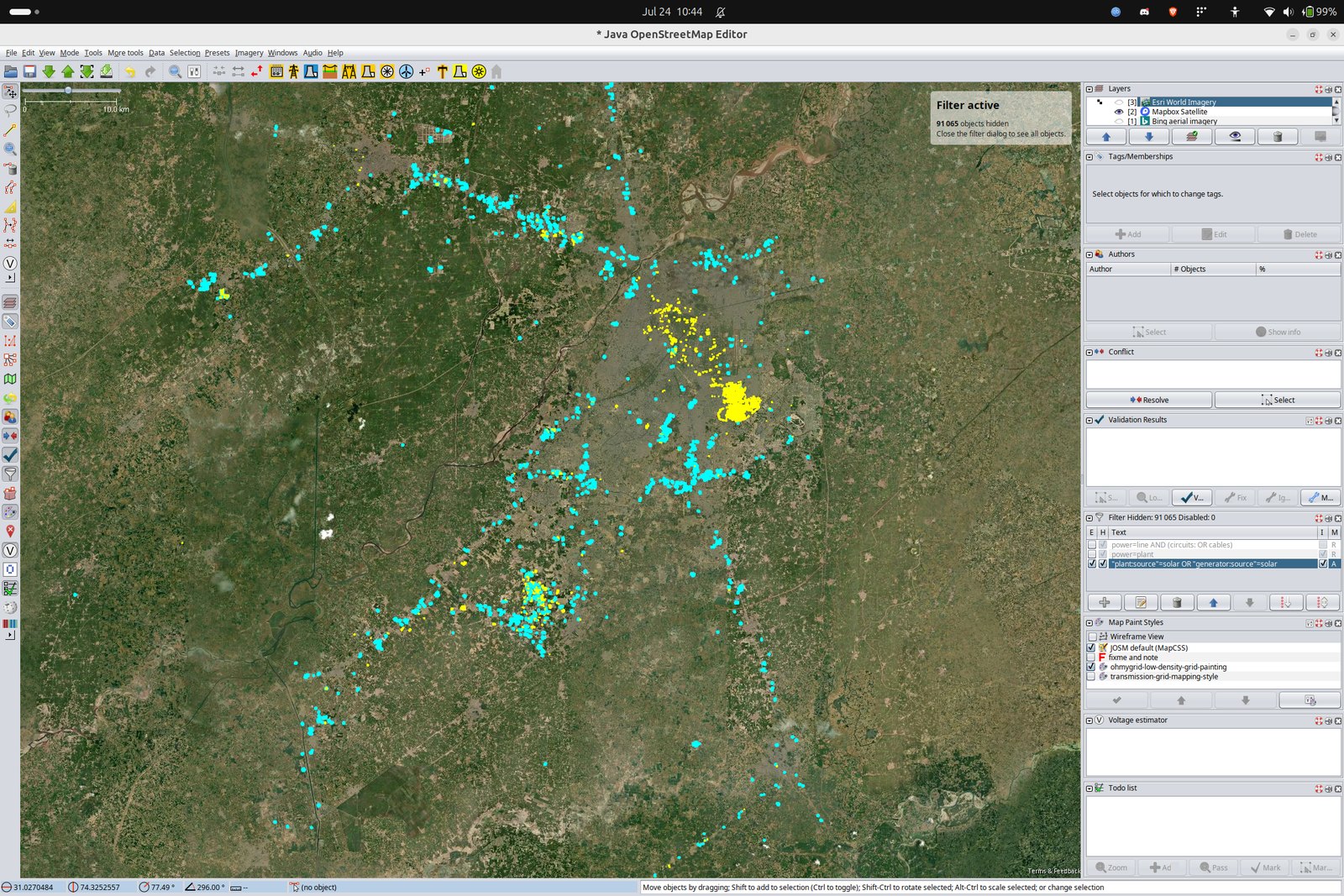
Three background layers loaded at once. A filter (here hiding 91,065 objects so only solar remains) shows at a glance what is already mapped.
4. Map every panel
Every installation inside the line, on roofs and on the ground, whatever kind of area it is: both of the project's detectors learn from every area.
- Zoom in until a single panel group is clearly visible.
- Press
A(draw) and click around the panels only, never the whole roof. Close the way by clicking the first node again. -
Tag it with the preset Man Made / Power / Power Generator / Solar Power Generator, or copy the tags below, select your new ways and press
Ctrl+Shift+V(Paste Tags):power=generator generator:source=solar generator:method=photovoltaic generator:output:electricity=yes location=roofDrop
location=rooffor panels on the ground (fields, yards, pump frames). -
Press
Qto square a rectangular shape.
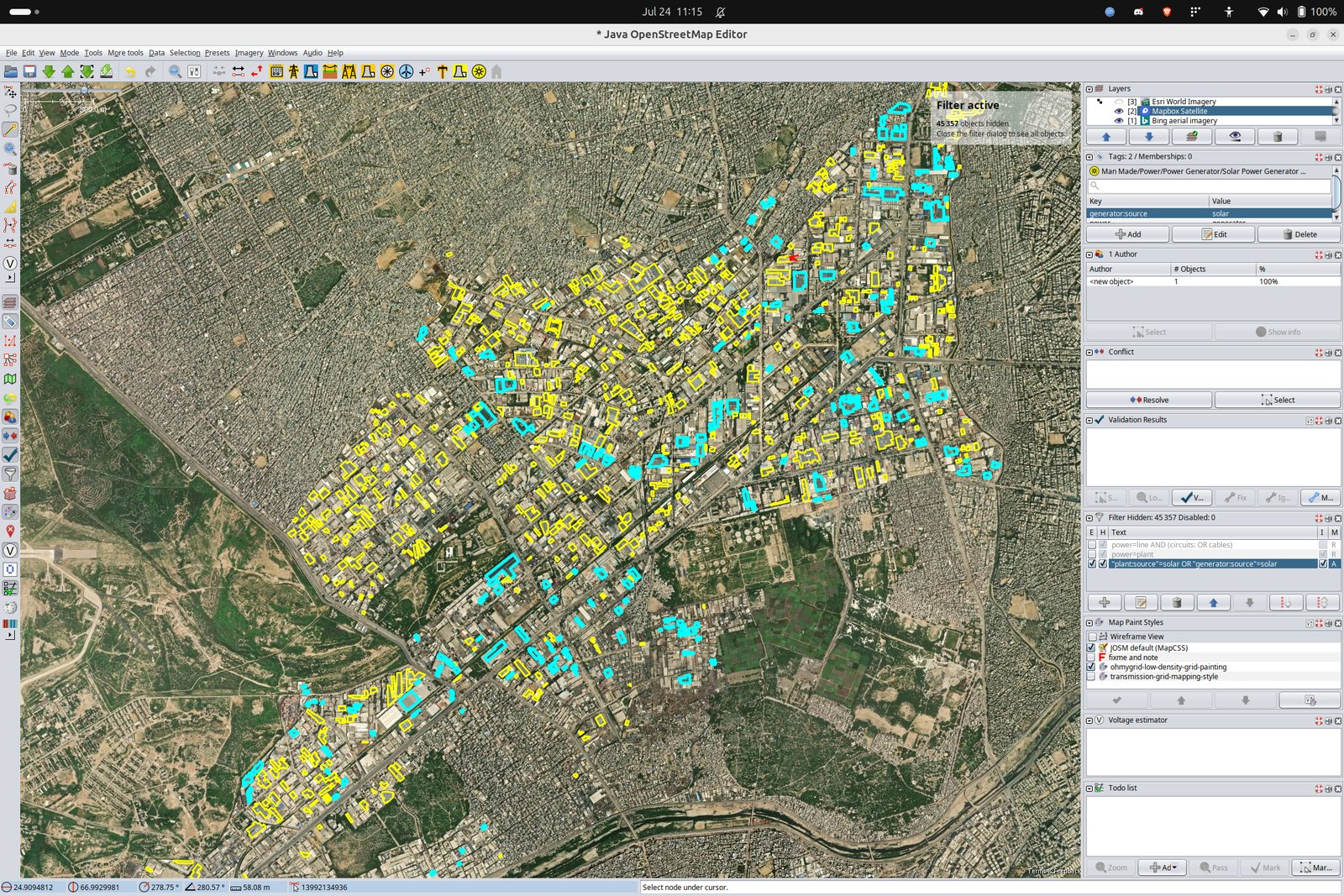
One way per contiguous group of panels; two separate groups on one roof are two ways. For a
tiny installation where tracing is hopeless (under about 4 m2), a node with the
same tags is fine. Not solar: water heaters (tubes or a round tank), skylights,
blue-painted roofs. If you really cannot tell at full zoom, map it with
fixme=possible solar rather than guessing either way.
5. Sweep, then sweep again on another layer
Work through the box block by block instead of jumping to what catches your eye. Then switch the background and sweep again: a panel invisible on one layer is often obvious on the next, because the layers differ in capture date, sun angle and sharpness. Mapping against a single layer is the most common reason a "complete" area is not.
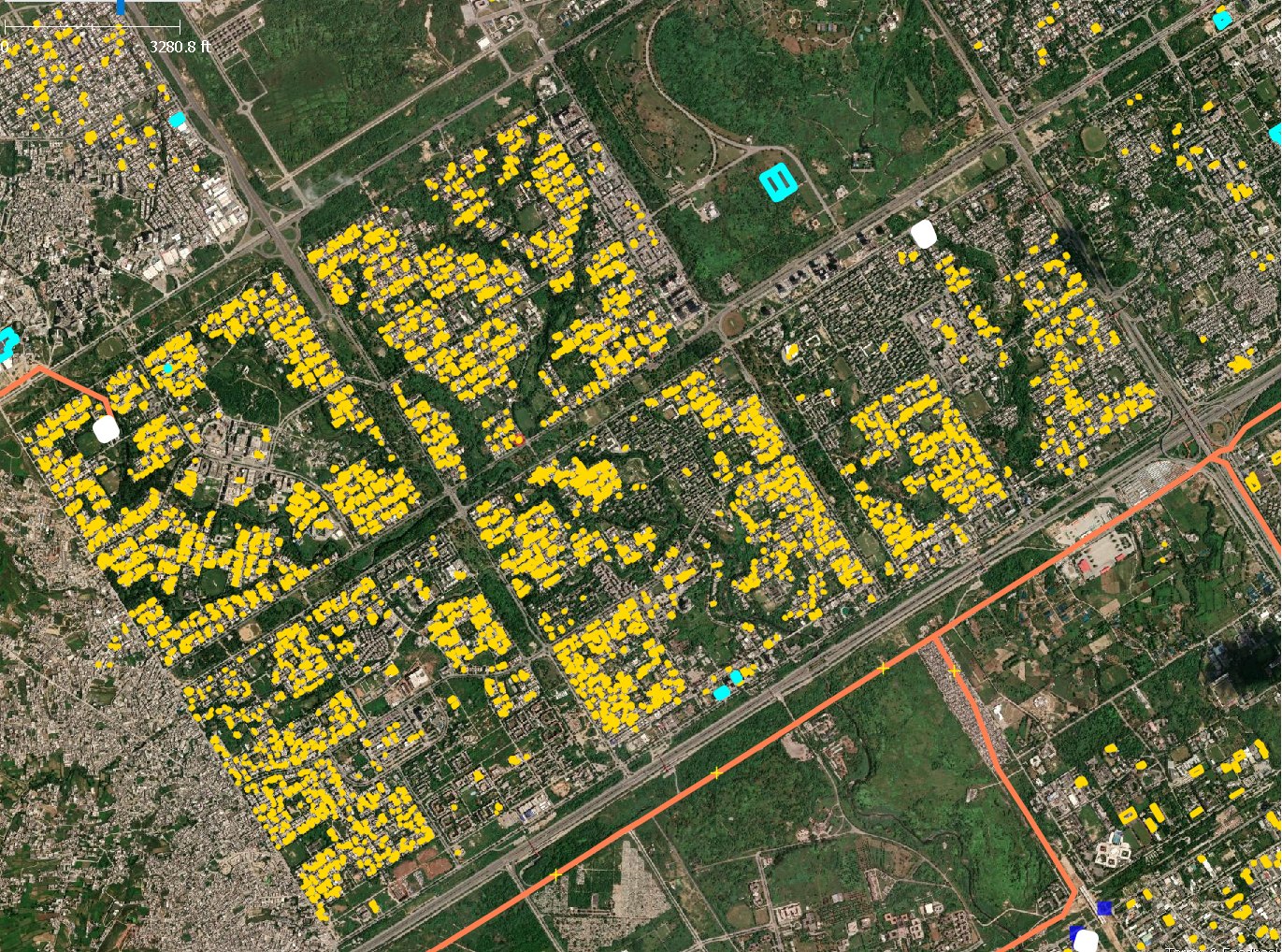
What "every visible panel" looks like in a residential area: near-total adoption, mapped house by house.
6. Validate and upload
- Run the validator (
Shift+V) and fix what it flags; overlapping ways and untagged geometry are the usual ones. - Upload (
Ctrl+Shift+Up). Check that the upload dialog names theOSM datalayer, never the boundary (JOSM refuses that one anyway). The comment and hashtags are filled in; put the imagery you traced from in thesourcetag, e.g.Esri World Imagery. - Upload in reasonable chunks, say every few hundred features: large changesets are hard for anyone to review.
Screenshot needed · save as docs/assets/figures/contribute-josm-upload.png
Show: JOSM's upload dialog for the OSM data <area> layer, with the prefilled
changeset comment (Map rooftop and ground-mounted solar PV in ... (earthpv calibration
area)), the hashtags, and source=Esri World Imagery in the changeset tags.
Then report your progress: finished, partly done, or not mappable.
Your own proposed area
A box from the atlas's Propose a calibration area button also opens in JOSM: it arrives as the same locked, never-uploaded layer, next to the OSM data for the box. To outline an area of your own shape instead, see Draw your own area.